

Conditional access policies are an if-then identity engine: if a sign-in matches certain conditions, then Microsoft Entra ID enforces controls like multi-factor authentication, blocks access, or demands a compliant device. The payoff is Zero Trust enforcement without forcing every user through the same friction. Before you flip any policy to "On," run it in report-only mode first. That single habit prevents most of the lockouts that give conditional access a bad reputation.
TL;DR:
- Conditional access policies must be tested in report-only mode for two to four weeks before enforcement to prevent user lockouts.
- Most failures stem from misconfigured exclusions, stale IP ranges, or unintended interactions between multiple policies.
- Licensing limits, such as Entra ID P1 and P2, and tenant caps of 240 policies, require careful planning to avoid enforcement gaps.
- Regular reviews, ownership, and time-bound exclusions are essential for maintaining long-term policy effectiveness and organizational security.
- Managed services can streamline discovery, rollout, and ongoing monitoring for small businesses lacking dedicated security staff.
Table of Contents
- What Are Conditional Access Policies and How Do They Work?
- Which Signals and Conditions Can You Build Policies Around?
- What Do Grant Controls and Session Controls Actually Do?
- How Do You Roll Out Baseline Conditional Access Policies?
- What Licensing and Policy Limits Should You Plan Around?
- How Do You Test and Troubleshoot Conditional Access Before Enforcing?
- What Operational Practices Keep Conditional Access Reliable Long Term?
- How Great Plains Networking Supports SMB Conditional Access Rollouts
- What's the Real Lesson Behind Failed Conditional Access Rollouts?
- Get Help Rolling Out Conditional Access the Right Way
- Where to Read Microsoft's Own Conditional Access Documentation
- Sources
What Are Conditional Access Policies and How Do They Work?
Every sign-in to a Microsoft 365 or Entra-connected application triggers a decision cycle. Entra ID collects signals (who the user is, what device they're on, where they're connecting from, what app they want), matches those signals against your policies, and enforces whatever grant or session controls apply. Microsoft's own deployment guidance describes this as combining signals like user, device, and location to automate access decisions rather than leaving them to static permissions.
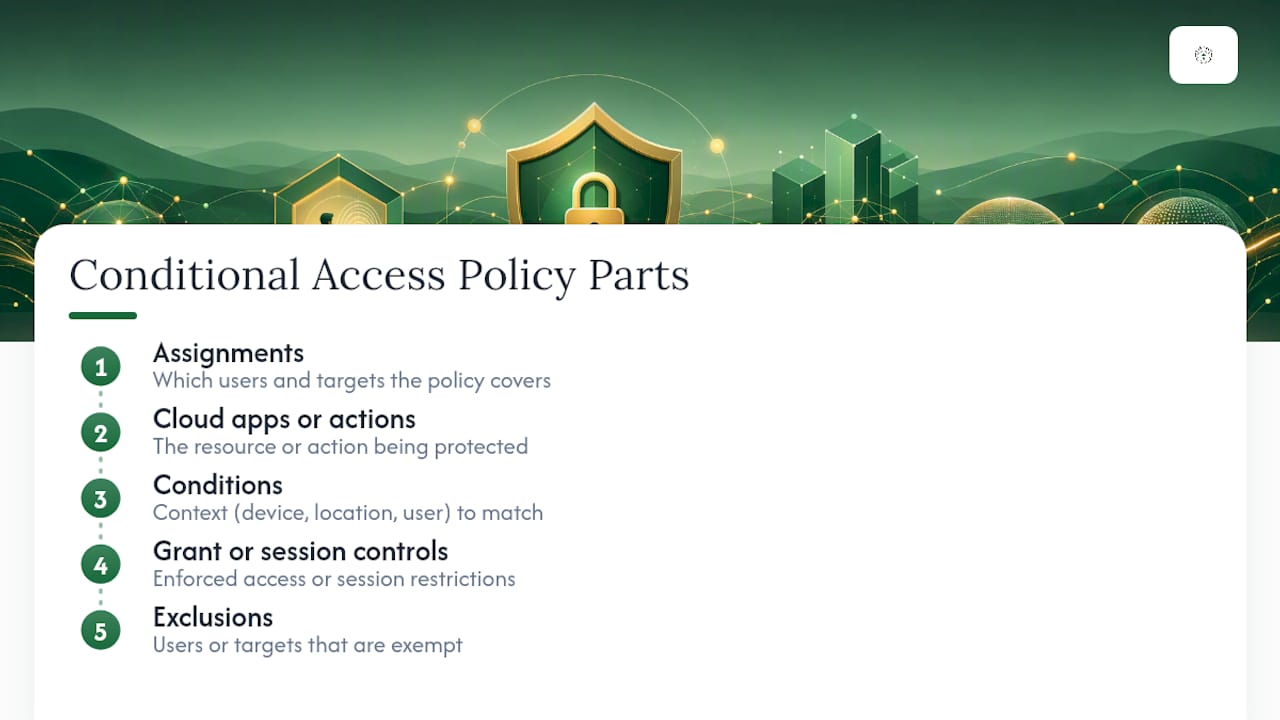
A policy has five working parts: assignments (who and what it targets), cloud apps or actions (the resource being protected), conditions (the context that must match), grant or session controls (the enforcement action), and exclusions (who gets a pass). Miss any one of these and the policy either does nothing or does too much.
This is why conditional access sits at the center of a Zero Trust architecture rather than off to the side. Firewalls and network perimeters assume trust once you're inside; conditional access assumes nothing and re-evaluates every request against current signals. It's the policy engine that turns "verify explicitly" from a slogan into an enforced rule.
Which Signals and Conditions Can You Build Policies Around?
Conditional access policies draw on six signal categories, and each one carries its own operational quirks.
- User and role signals: target specific users, groups, or directory roles, with privileged roles (Global Admin, Security Admin) typically getting the strictest controls.
- Device signals: rely on Intune-reported compliance state, so a newly enrolled device can show as noncompliant for a few minutes to hours until sync completes.
- Named locations: use IP ranges or countries, but corporate VPNs and NAT gateways can make an entire office look like a single IP, which either over-includes or under-includes users depending on how the range is drawn.
- Sign-in risk and user risk: score anomalies like impossible travel or leaked credentials, but risk-based policies require Entra ID P2 through Identity Protection, and risk detections can lag real-time by several minutes.
- Client apps and authentication protocols: distinguish modern auth from legacy protocols like POP3 and IMAP, which don't support MFA at all and need their own block policy.
- Filters for devices and apps: let you scope a policy to a subset of managed devices instead of an all-or-nothing rule.
Service accounts and break-glass identities deserve a deliberate exclusion strategy here, not an afterthought. More on that later.
What Do Grant Controls and Session Controls Actually Do?
Grant controls decide whether access happens at all. Session controls decide what happens once access is granted, which matters more for balancing security against user patience.
The core grant controls are require MFA, require a compliant device (Intune), require an approved client app, require a password change, and block access outright. You can also require a specific Authentication Strength, which is how you force phishing-resistant methods (FIDO2 keys, certificate-based auth, Windows Hello for Business) for admin accounts instead of accepting any MFA method, including SMS, which is far weaker against credential phishing.
Session controls run underneath that decision:
- Sign-in frequency forces re-authentication after a set interval, useful for high-risk apps.
- Persistent browser session lets users stay signed in across browser restarts on trusted devices.
- App-enforced restrictions hand limited, read-only access to unmanaged devices instead of blocking them outright.
When a user matches multiple policies, all applicable grant controls combine with AND logic. Require MFA plus require compliant device means both conditions must be satisfied, not either one.
Pro Tip: Stack session controls before you stack grant controls. Tightening how often someone re-authenticates causes far less user pushback than adding a second mandatory control on top of MFA.
How Do You Roll Out Baseline Conditional Access Policies?
A safe rollout follows a fixed order: discover, protect the foundation, expand coverage, then layer in risk-based intelligence. Skipping ahead is how admins lock out their own help desk.
- Discovery. Inventory every existing policy (including legacy per-user MFA settings), then run What If simulations and collect report-only signal for two to four weeks before changing anything.
- Phase 1: lock the foundation. Deploy "Block Legacy Authentication," "Require MFA for Admin Roles," and "Protect MFA Registration" (requiring MFA before users can register new methods). Exclude both break-glass accounts from every policy in this phase.
- Phase 2: expand to all users. Roll out "Require MFA for All Users" and "Require Compliant Device for Sensitive Apps" (finance systems, HR platforms, admin portals) to a pilot group first, then widen incrementally to larger groups over time.
- Phase 3: add nuance. Introduce app protection policies for BYOD instead of blanket device blocks, tighten session controls on high-value apps, and, if you're licensed for P2, layer in risk-based sign-in and user-risk policies.
A practical baseline builder recommends naming policies with a consistent prefix, like "CA01 Block Legacy Auth" or "CA02 Require MFA All Users," so ordering and intent stay obvious in the portal. Keep exclusions to break-glass accounts only during this rollout. Every additional exclusion is a gap you'll forget to close.
What Licensing and Policy Limits Should You Plan Around?
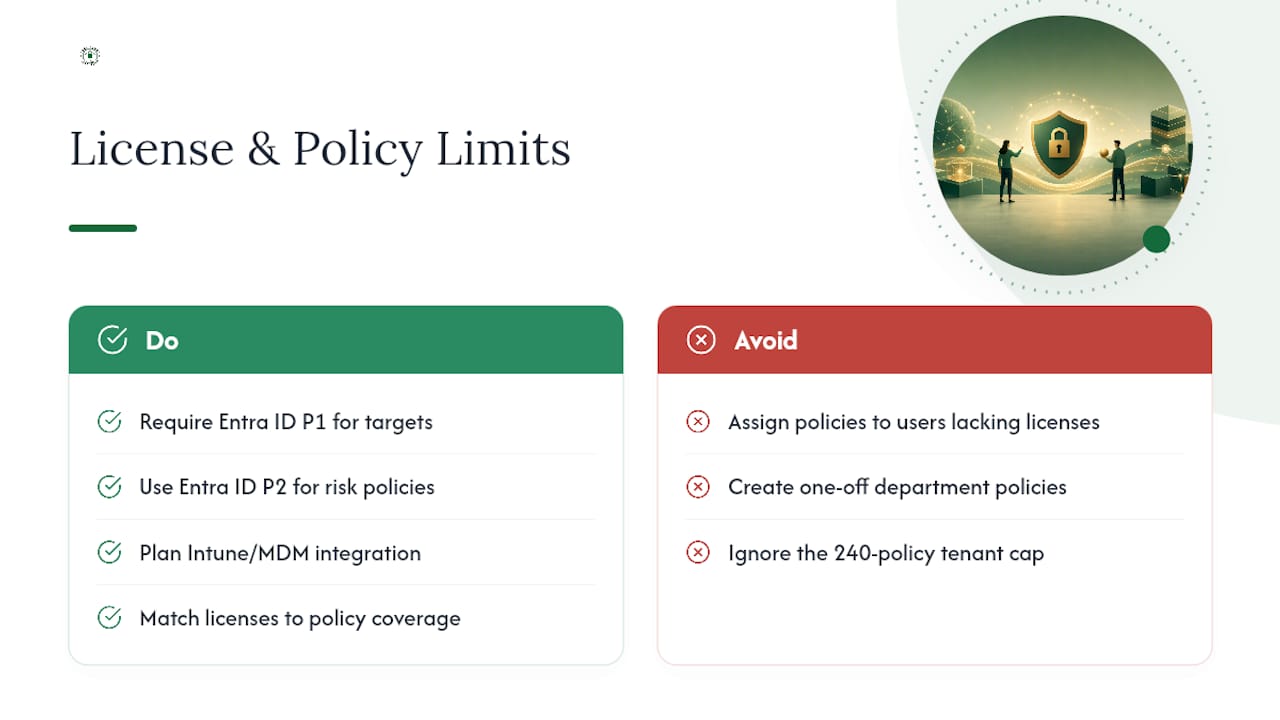
Conditional access itself requires Entra ID P1 for every targeted user, but risk-based policies (sign-in risk, user risk) require Entra ID P2, since they draw on Identity Protection's detection engine. Device compliance conditions also assume Intune or another MDM feeding compliance data, so plan that integration before writing device-based policies.
Licensing has to match coverage, not just headcount. If your policy assignment includes a group of 200 users but only 150 hold P1 licenses, the other 50 fall outside enforcement, often silently.
Entra ID also caps tenants at 240 conditional access policies total, counting report-only and disabled states. That ceiling arrives faster than most admins expect once departments start requesting one-off exceptions. Consolidating policies by group or role assignment, instead of writing a new policy per department, keeps you well under the limit and keeps the tenant configuration readable.
How Do You Test and Troubleshoot Conditional Access Before Enforcing?
Report-only mode and the What If tool exist so you never have to guess what a policy will do in production. Report-only simulates enforcement and logs the outcome without actually blocking anyone, and What If lets you plug in a specific user, app, and location to see exactly which policies would fire. Microsoft's own guidance on evaluating impact treats these two tools as the standard pre-flight check, not an optional extra.
Once a policy is live, the sign-in logs become your diagnostic tool. Every sign-in event lists which conditional access policies were evaluated and whether each one matched, succeeded, or failed, which turns "why can't this user log in" from a guessing game into a lookup.
Most production failures trace back to a small set of causes:
- An exclusion group that quietly grew to include users it shouldn't.
- A named location built from a stale IP range after an ISP or VPN change.
- A service account that got caught in a "require compliant device" policy because it was never explicitly excluded or handled through a dedicated workload identity policy.
- Two policies whose grant controls interact in unexpected ways under AND logic.
If a rollout goes wrong, you have three rollback paths: disable the policy, add the affected users to a temporary exclusion group, or restore a prior version from Entra ID's soft-delete recovery. Keep the first option as your default. Temporary exclusions are easy to create and easy to forget.
What Operational Practices Keep Conditional Access Reliable Long Term?
Conditional access degrades the same way any access-control system does: through accumulated exceptions nobody revisits. A few disciplines keep it healthy.
- Maintain two break-glass accounts, cloud-only, excluded from every policy, protected with phishing-resistant authentication, and with credentials stored offline in a physical safe, not a shared password vault.
- Treat every exclusion as time-bound. If an exception outlives its original reason, remove it during the next review cycle.
- Consolidate policies around groups and roles instead of individual users, and schedule a recurring review (quarterly is reasonable for most SMBs).
- Reduce MFA fatigue by pairing sign-in frequency controls with number-matching push notifications, and reserve phishing-resistant methods for admin and finance roles specifically.
- Assign clear ownership for the policy set, with alerts configured for changes, so drift gets caught by a person, not by an outage.
Practitioner analysis of real-world Conditional Access failures points to the same root cause again and again: teams treat conditional access as a checkbox to satisfy an audit instead of an architecture that needs upkeep. The policies that survive two years of organizational change are the ones somebody owns.
Pro Tip: Put a calendar reminder on your break-glass account passwords, not just your policies. An emergency account with an expired password is worse than no emergency account, because you won't discover it works until the moment you need it.
How Great Plains Networking Supports SMB Conditional Access Rollouts
For a five-person law office or a dental practice with no dedicated IT staff, running discovery, report-only testing, and phased MFA rollout in-house eats weeks that nobody has spare. Specialized providers handle that work directly for small businesses in certain regions: policy inventory, Intune onboarding, break-glass account setup, and 24/7 monitoring once policies go live. If you're weighing MFA options for a legal team, our guide on multi-factor authentication for legal offices and our Intune device compliance walkthrough cover the two pieces most SMBs get stuck on first.
What's the Real Lesson Behind Failed Conditional Access Rollouts?
Most conditional access failures aren't technical. They're organizational: nobody owns the policy set after the initial rollout, exceptions pile up, and six months later nobody remembers why a director account has three exclusions attached. The fix isn't a smarter policy. It's a review calendar and a named owner.
Here's the sequence that actually holds up: inventory existing rules, stand up two break-glass accounts, run report-only for a few weeks, pilot with a small group, enforce in waves, then review quarterly. Skip the review step and you'll drift right back into the mess you started with.
If your last conditional access review happened whenever the tenant was set up, that's worth fixing before it becomes an incident report.
— Nicholas
Get Help Rolling Out Conditional Access the Right Way
Building a conditional access rollout on your own means juggling report-only testing, Intune onboarding, break-glass account setup, and MFA enforcement, all while running the rest of your business. Managed IT service providers can be an alternative to hiring a full-time security admin for small businesses: one team handles the pilot, the phased rollout, and the ongoing monitoring, with prompt response and flexible contract terms.
Our managed IT support covers exactly the ground this article walks through: policy inventory, device compliance through Intune, MFA rollout, and 24/7 monitoring for policy drift after launch. Practices with compliance obligations can pair that with our cybersecurity services for ongoing risk monitoring, and Oklahoma businesses evaluating regulatory alignment can start with our free SB 626 readiness audit. If you're ready to see where your current setup stands, reach out to schedule a review.
Where to Read Microsoft's Own Conditional Access Documentation
For primary-source detail, start with Microsoft's deployment planning guide, its report-only mode documentation, and this ISO 27001 Zero Trust alignment guide for governance-minded teams.
Sources
- Plan your Conditional Access deployment - Microsoft Learn
- Why Entra ID Conditional Access Fails in Practice (And How to Fix It) - Cloud Harbor Consulting
- Microsoft 365 Conditional Access Policy Builder: A Practical Guide for 2026