
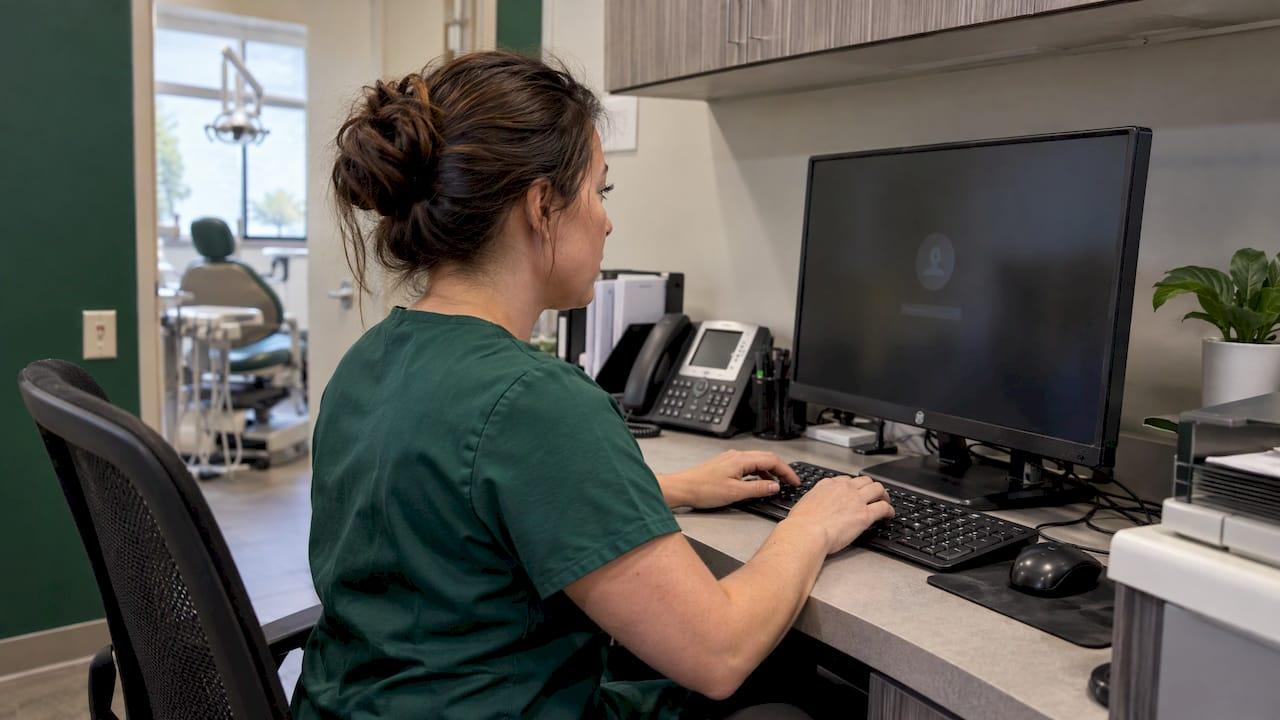
HIPAA workstation security means two things: a written policy for how each computer that touches patient data is used, and physical and technical safeguards that keep unauthorized people away from it. HIPAA sets no screen-lock timeout in minutes. It requires you to choose one based on your own risk analysis and write the reasoning down. For a dental practice, law firm or clinic in the Oklahoma City metro, the practical job is to inventory every device, set locks that fit each room, enforce them centrally and keep the paperwork. We do this for small businesses in Norman, Moore and Oklahoma City, and the steps below are the ones that hold up in an audit.
Key Takeaways
- A HIPAA "workstation" is any laptop, desktop or similar device that handles electronic protected health information (ePHI), plus the media stored near it. Phones and tablets that do the same job are covered.
- HIPAA requires an automatic logoff after a "predetermined time of inactivity" but does not name the number of minutes. You choose it by risk and document why.
- A screen lock only counts if it asks for a password, PIN, badge or biometric to resume. A screensaver that disappears on a key press does not.
- Physical controls (screen placement, privacy filters, cable locks, locked rooms) and technical controls (encryption, multi-factor authentication, central policy) work as layers.
- Keep your policies and risk analysis for six years. A proposed 2025 rule would tighten these requirements, but the current rule is the one that applies today.
Table of Contents
- What HIPAA counts as a workstation
- What the Security Rule requires
- HIPAA screen lock requirements
- Physical safeguards that fit a small office
- Technical controls that back up the physical ones
- Remote work, laptops and personal phones
- Document it and keep it
- The proposed Security Rule changes
- A five-step workstation security routine
- Get your workstations audit-ready with Great Plains Networking
- FAQ
- Sources
What HIPAA counts as a workstation
The Security Rule defines a workstation as an electronic computing device, such as a laptop or desktop computer, or any other device that performs similar functions, together with the electronic media stored in its immediate environment. That second half matters. A USB drive in the front-desk drawer or an external backup disk beside a chairside computer is part of the workstation.
In a small office this covers more than the obvious machines:
- The reception computer that shows the schedule and patient or client names
- Operatory, exam-room or conference-room computers shared by several people
- Laptops that leave the building
- Tablets and phones used to read email or records
- A server closet or a shared printer that stores scanned documents
Personal devices count too. HIPAA Journal notes that the workstation standards apply to devices workforce members own when those devices reach ePHI, and that PIN locks, biometrics and the Security Rule's technical safeguards can protect ePHI on them.
What the Security Rule requires
Two standards in the physical safeguards section, 45 CFR § 164.310, apply directly:
- Workstation use. You must have policies that spell out the proper functions to be performed on a workstation, how they are performed, and the physical attributes of the surroundings of a workstation that can reach ePHI. In plain terms: what the computer is for, how staff may use it, and where it sits.
- Workstation security. You must put physical safeguards in place for every workstation that accesses ePHI, so that only authorized users can get to it.
The rule does not say which safeguards. The HHS summary of the Security Rule explains that the rule is scalable and technology-neutral. You weigh your size, complexity, technical setup, costs, and how likely and how serious each risk is. A two-dentist practice and a hospital will land on different answers, and both can be compliant.
That flexibility is why a documented risk analysis comes first. If you have not done one recently, our guide to HIPAA risk assessment steps walks through scope and method.
HIPAA screen lock requirements
The screen-lock rule lives in the technical safeguards. Under 45 CFR § 164.312(a)(2)(iii), you must implement electronic procedures that terminate an electronic session after a predetermined time of inactivity. This is called automatic logoff, and it is an "addressable" specification.
What "addressable" means
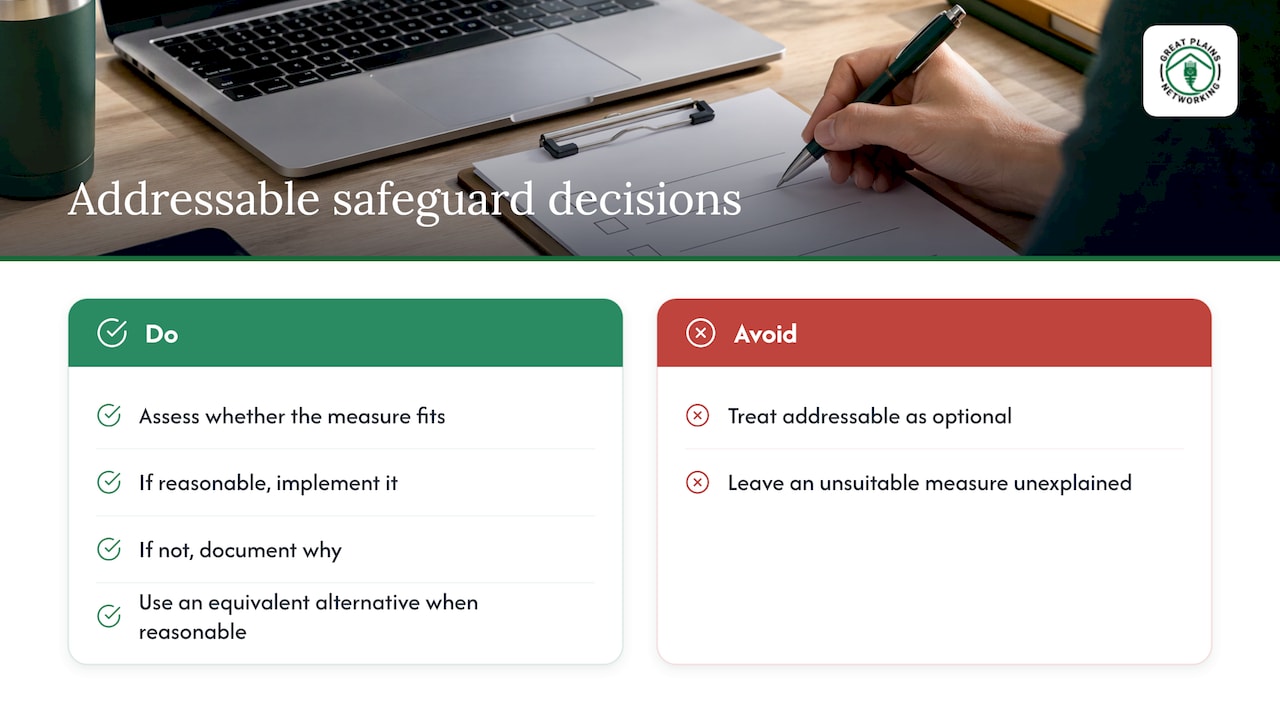
Addressable does not mean optional. Under 45 CFR § 164.306(d), as the HHS summary explains, you assess whether the measure is reasonable and appropriate for your environment. If it is, you implement it. If it is not, you document why and put an equivalent alternative in place when that is reasonable. For a computer that shows patient or client records in a room visitors can enter, there is rarely a good argument against an automatic lock.
The number of minutes
HIPAA gives no figure. The rule says the period must be "predetermined," meaning you decide it in advance, set it deliberately and record the reason. What drives the choice:
- Where the workstation sits and who can walk past it
- Who has physical access (staff only, patients, vendors, cleaners)
- What threats exist in that space
- How damaging it would be if someone used an unlocked screen
Many small organizations use a tiered approach. The ranges below are common practice, not HIPAA figures, so treat them as starting points for your own analysis:
| Location | Typical lock range | Why |
|---|---|---|
| Front desk, operatories, exam rooms, shared stations | 2 to 5 minutes | Patients and visitors pass close by |
| Clinical or busy staff areas | 5 to 10 minutes | Balance between risk and patient flow |
| Private offices behind locked doors | 10 to 15 minutes | Limited access, fewer interruptions |
| Phones and tablets | 1 to 2 minutes | Easy to lose or pick up |
Some organizations also add a longer timeout inside the records application itself, so the operating system locks the screen quickly and the application ends the session later. Where a short lock would slow patient care, a proximity badge that lets staff sign back in with a tap is a common compromise.
The lock must require sign-in
A lock that returns to the desktop when someone presses a key or moves the mouse is not a logoff. Resuming must require re-authentication: a password, PIN, badge tap or biometric. Check this on a real machine in each department, because screensavers often ship with the "on resume, require password" box unchecked.
Enforce it centrally
If each employee controls their own timeout, you will have gaps. Push the setting from one place, through Windows or macOS policy or a device management tool, and keep a report showing it is applied. That report becomes evidence. Our Microsoft 365 support covers the accounts and device settings that make this practical for small teams.
Physical safeguards that fit a small office
The HHS Office for Civil Rights (OCR), which enforces HIPAA, has published guidance on physical security that suits small organizations. It lists several controls:
- Privacy screens and cable locks, which it puts at roughly $20 to $40 each
- Low-cost port and device locks
- Screens positioned away from public view
- Equipment kept in secured areas
- Depending on the organization, cameras, guards and signage
The same guidance suggests questions to ask yourself. Do you have a current inventory of every electronic device and where it lives? Are any in public or vulnerable areas? Which controls are in use? Do policies and training exist? Those four questions make a practical first audit.
A walk-through by room
Walk the office as a visitor would:
- Reception. Can someone at the counter read the screen? Turn it, add a privacy filter, and lock it after a short idle period.
- Operatories and exam rooms. These are shared, so they get the shortest lock and individual log-ins, never one shared password.
- Back office and server closet. Is the door locked? Are backup drives and spare laptops stored out of reach?
- Printers and scanners. Scans of intake forms and case files can sit in memory. Know which devices store them.
- Removable media. USB drives are small and easy to lose. An auditable USB device control policy shows how to limit and log them.
Technical controls that back up the physical ones
Physical controls fail when a laptop leaves the building. NIST Special Publication 800-66 Revision 2, the federal guide to implementing the Security Rule, says that when physically securing devices is impractical, you add safeguards: limit device capabilities and user permissions for ePHI, encrypt the device, require strong access controls such as multi-factor authentication (MFA) and screen lock, manage devices with mobile device management or endpoint detection tools, and train staff on mobile and remote computing risks.
For a small business, that translates to a short list:
- Full-disk encryption on every laptop and desktop, so a stolen machine is a hardware loss rather than a data loss
- MFA on email, the records system and remote access
- Individual accounts with only the access each role needs
- Central policy for lock timeouts, updates and security software
- Monitoring and alerts so a missing or misbehaving device is noticed quickly
- Tested backups, so one stolen or ransomware-hit workstation does not stop the practice
Our cybersecurity and backup and recovery services cover ransomware and phishing protection and data recovery for Oklahoma small businesses, and our managed support includes 24/7 monitoring.
Remote work, laptops and personal phones
A front desk is easy to see. A laptop on a kitchen table is not. Your workstation policy should say whether staff may work from home, on which devices, and over what connection. Cover these points:
- Only approved, encrypted, centrally managed devices may open ePHI
- Screen lock and MFA apply at home as they do at the office
- Family members never use a work device
- Lost or stolen devices are reported the same day
- Personal phones that check work email either meet the same standard or do not receive ePHI
The remote work security checklist we published breaks this into 30 and 90 day steps.
Document it and keep it
Auditors and OCR investigators ask for paper. For workstation security, build a small file:
- A device inventory with location and user
- The workstation use policy, with lock timeouts listed by room type or device type
- The risk analysis and the reasoning for each timeout, including any addressable item you handled differently
- Configuration exports or reports showing the settings are applied
- Training records
- A review date
Under 45 CFR § 164.316(b), the HHS summary notes that policies, the rationale and risk analysis results must be kept six years from creation or from when they were last in effect, whichever is later. Whoever writes your staff policies will also need a tidy system for storing and tracking them, and HR policy documentation tools can help keep signed acknowledgments organized.
If you want the whole program in one place, see our guide to defensible HIPAA IT compliance in 60 to 90 days, and our piece on HIPAA risk assessment costs for small clinics helps you budget the analysis.
The proposed Security Rule changes
On January 6, 2025, HHS published a proposed rule to strengthen the Security Rule. If finalized, it would remove the difference between "required" and "addressable," which would make automatic logoff a flat requirement. It would also require written workstation policies that cover all workstations, including mobile ones, with review and testing at least once every 12 months. Its automatic logoff language calls for an inactivity period that is both predetermined and reasonable and appropriate, with shorter periods for users with administrative or high-level access.
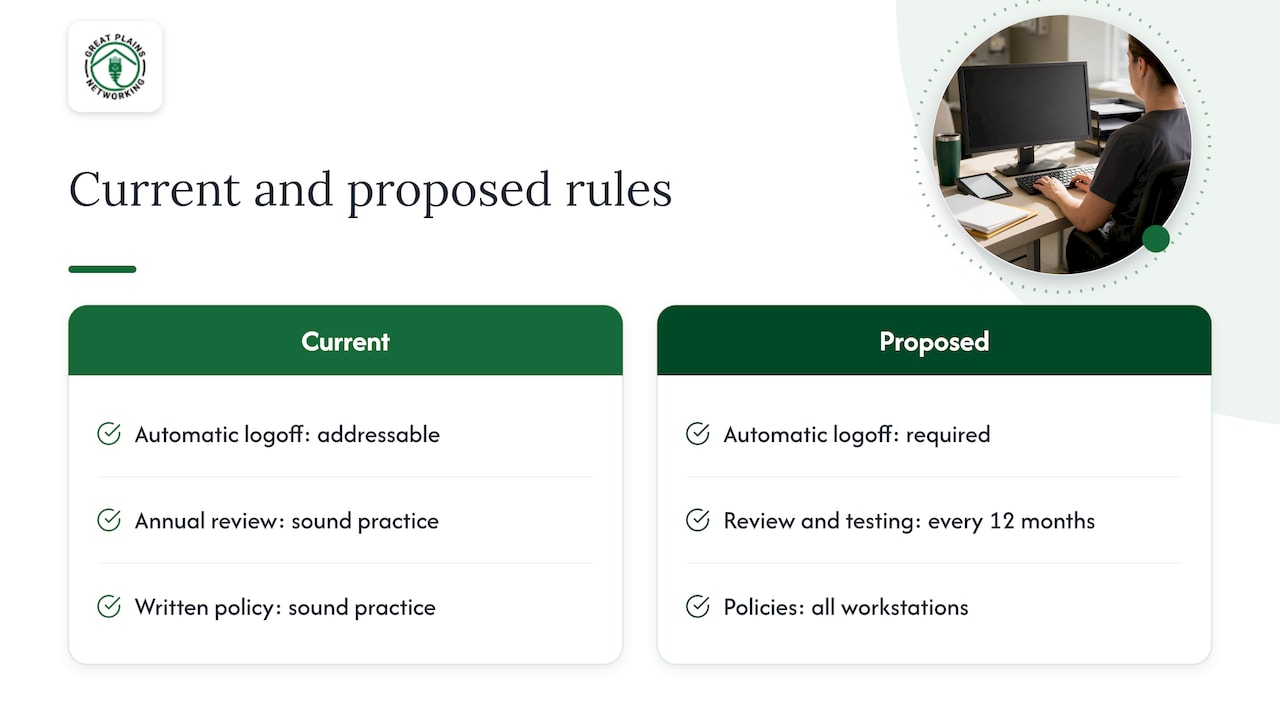
A proposal is not a rule. The current Security Rule, with addressable automatic logoff, still governs your obligations. Still, most of what is proposed is already sound practice: a written policy, a defined lock for every device, MFA, encryption, and an annual review. If you build to that standard now, a final rule becomes a paperwork update rather than a project.
A five-step workstation security routine
- List every device that can open ePHI, including laptops, tablets, phones and shared stations, with its room and user.
- Rate each location by who can see or reach it, then assign a lock period by tier.
- Set the controls: lock with re-authentication, encryption, MFA, screen placement and privacy filters, locked storage for media.
- Enforce centrally and export a report that shows the settings applied on every machine.
- Write it down and review it at least once a year, and after any move, new device or staff change.
Steps 3 and 4 are where small offices stall, because nobody owns the settings once the computers are installed. That is the work managed IT takes off an office manager's desk.
Get your workstations audit-ready with Great Plains Networking
We provide proactive managed IT support to dental and medical practices, law firms, accounting firms and other small businesses in Norman, Moore and Oklahoma City, with compliance guidance for HIPAA, IRS and CMMC requirements. Our support includes 24/7 monitoring, a same-day response commitment, plain-language explanations and no long-term contracts. Our managed IT support covers the devices, accounts and security settings described above.
If you want to see where you stand first, take our 10-minute readiness audit or ask for a free network assessment.
FAQ
How long should a HIPAA screen lock timeout be?
HIPAA does not set a number. You choose a period through your risk analysis and document it. Many small organizations use roughly 2 to 5 minutes in shared or public-facing areas and up to 10 to 15 minutes in private, locked offices.
Does a screensaver satisfy the HIPAA automatic logoff requirement?
Only if it requires a password, PIN, badge or biometric to resume. If anyone can dismiss it with a key press or mouse movement, it does not protect the session. Set the lock to require sign-in and check it on each type of machine.
Does HIPAA workstation security apply to laptops and personal phones?
Yes. The rule defines a workstation as a laptop, desktop or similar device, and the standards apply to personal devices that workforce members use to reach ePHI. Use encryption, a lock with re-authentication and MFA on any device that can open patient or client health records.
Is the "addressable" label a way to skip automatic logoff?
No. You must assess whether it is reasonable and appropriate, implement it if so, or document why not and adopt an equivalent measure. In most offices where screens are visible to others, implementing it is the straightforward answer.
How long do I keep workstation policies and risk analyses?
Six years from the date created or the date last in effect, whichever is later. Keep the reasoning behind your timeout choices with them.
Sources
- eCFR: 45 CFR § 164.310, Physical safeguards
- eCFR: 45 CFR Part 164 Subpart C, Security Standards
- HHS: Summary of the HIPAA Security Rule
- Cornell LII: 45 CFR § 164.312, Technical safeguards
- OCR Cybersecurity Newsletter, May 2018: Workstation security
- NIST SP 800-66r2: Implementing the HIPAA Security Rule
- HIPAA Journal: Physical safeguards of HIPAA's Security Rule
- Federal Register: HIPAA Security Rule to Strengthen the Cybersecurity of ePHI