

If your tenant has no Entra ID P1 license, enable Security Defaults today for an immediate, zero-configuration baseline. If you hold Entra ID P1 or P2 and need exceptions, risk-based prompts, or app-specific rules, build Conditional Access policies instead. Leave legacy per-user MFA alone unless neither option is available to you.
TL;DR:
- Enabling Security Defaults is recommended for small tenants without Entra ID P1 licenses, as it blocks legacy authentication with minimal setup.
- Conditional Access requires P1 or P2 licenses and offers granular, app-specific MFA rules, but is more complex to implement.
- Always create emergency access accounts and test policies in report-only mode before enforcement to prevent lockouts.
- Use Microsoft Authenticator or FIDO2 keys as primary MFA methods, and require at least two methods per user to prevent access issues.
- Regularly review sign-in logs and registration reports to verify MFA is functioning correctly after deployment.
Table of Contents
- When Should You Use Security Defaults vs. Conditional Access vs. Per-User MFA for Microsoft 365?
- How Do You Enable Security Defaults in Microsoft 365?
- How Do You Roll Out Conditional Access for MFA Without Locking Everyone Out?
- What MFA Methods Should Users Register, and Where?
- How Do You Verify MFA Is Actually Working After Deployment?
- Publisher Perspective: Practical Tips From Great Plains Networking
- Editorial Take: The Advice Most Guides Get Wrong
- Let Great Plains Networking Handle Your MFA Rollout
- Key Microsoft Documentation to Bookmark
- Sources
- FAQ
When Should You Use Security Defaults vs. Conditional Access vs. Per-User MFA for Microsoft 365?
Microsoft gives administrators three distinct paths to MFA for Microsoft 365, and picking the wrong one wastes hours you don't have. Security Defaults is a tenant-wide switch, on or off, with no customization. Conditional Access is policy-based and requires an Entra ID P1 or P2 license, but it lets you write rules for specific apps, locations, or risk levels. Per-user MFA is the legacy option Microsoft actively discourages now that better tools exist.
Here's how the trade-offs actually break down for a small business:
- Security Defaults: free with every Microsoft 365 plan, blocks legacy authentication automatically, but offers zero exceptions for any user or app.
- Conditional Access: requires Entra ID P1 (included in Microsoft 365 Business Premium) or P2, and lets you exempt trusted networks or specific roles.
- Per-user MFA: still technically functional, but it predates modern conditional logic and creates management headaches at scale.
Run a quick checklist before deciding: How many users do you manage? Do you need exceptions for a trusted office network or a specific line-of-business app? Is Entra ID P1 already bundled in your license, or would you need to buy it separately? A five-person tenant with no special app needs rarely benefits from the added complexity of Conditional Access.
How Do You Enable Security Defaults in Microsoft 365?
Turning on Security Defaults takes about five minutes and applies to every user in the tenant at once.
- Sign in to the Microsoft Entra admin center with a Global Administrator or Security Administrator account.
- Go to Identity > Overview > Properties.
- Select Manage security defaults and toggle the setting to Enabled.
- Save your changes.
Once enabled, every user gets a 14-day window to register for Microsoft Authenticator, and legacy authentication protocols like IMAP and older Outlook clients stop working immediately. Admin accounts are required to complete MFA registration right away, with no grace period.
Check your sign-in logs the next morning. You should see MFA prompts appearing for users who previously signed in silently, and any lingering legacy-auth attempts should now show as blocked.
Pro Tip: If you later need exceptions, for a trusted vendor account or a legacy line-of-business app, don't fight Security Defaults. Turn it off and move to Conditional Access instead. Running both at once creates conflicting policy behavior.
How Do You Roll Out Conditional Access for MFA Without Locking Everyone Out?
A phased rollout protects you from the single biggest Conditional Access mistake: enforcing a policy that locks out your entire staff on a Friday afternoon. Before writing a single rule, inventory every app your tenant uses, confirm they support modern authentication, verify your Entra ID P1/P2 license, and create at least two emergency access accounts excluded from every policy you build.
Microsoft's own Conditional Access planning guidance recommends three phases:
- Foundation: block legacy authentication, secure the My Security Info registration page, and run new policies in report-only mode to see who would be affected before anything gets enforced.
- Core: require MFA for all users and guests, group applications sensibly to avoid policy sprawl, and pilot with a small test group before tenant-wide rollout.
- Advanced: layer in risk-based sign-in controls and restrict high-risk sign-ins, both of which require Entra ID P2.
| Deployment phase | Granularity/customization | License requirement | Best for | Impact on legacy authentication |
|---|---|---|---|---|
| Foundation | Low, tenant-wide blocks | P1 | Small tenants standardizing on modern auth | Fully blocked |
| Core | Medium, group-based rules | P1 | Growing teams needing MFA for guests and staff | Fully blocked |
| Advanced | High, risk-based conditions | P2 | Tenants with sensitive data or compliance needs | Fully blocked plus adaptive risk scoring |
A tenant can run many Conditional Access policies, but most small businesses need relatively few if apps are grouped well.
Pro Tip: Leave every new policy in report-only mode for at least a week before enforcing it. That window shows you exactly who would get blocked, so you can fix exclusions before they become help-desk tickets.
What MFA Methods Should Users Register, and Where?
Microsoft Authenticator and FIDO2 security keys are the recommended primary methods for Microsoft 365 accounts. Both align with the NIST AAL2 standard for authenticator assurance, meaning they resist phishing and interception far better than a text message.
Users register their methods through the My Security Info page, and admins control which methods appear as options in the authentication methods policy in the Entra admin center. A few rules matter here:
- Never leave a user with just one registered method. Require at least two, so a lost phone doesn't turn into a lockout ticket.
- SMS and voice call codes still work, but they're vulnerable to SIM-swapping and interception, so treat them as a fallback, not a primary.
- Hardware FIDO2 keys make sense for high-privilege accounts, like Global Administrators, where the cost of compromise is highest.
Microsoft's own guidance flags SMS as the weakest widely deployed option, which is one reason Security Defaults pushes users toward the Authenticator app instead of text codes by default.
How Do You Verify MFA Is Actually Working After Deployment?
Confirming MFA works means checking real sign-in behavior, not just trusting the toggle you flipped.
- Pull the Entra sign-in logs and filter for MFA prompts and legacy authentication attempts. Blocked legacy attempts confirm your policy is doing its job, since legacy protocols like IMAP and POP bypass MFA entirely when left open.
- Test your emergency access accounts and any policy exclusions using a dedicated test user, not a live admin account.
- Run new or changed policies in report-only mode and review the impact report before flipping to enforced.
- Send a short heads-up to staff before enforcement day, and prep your help desk with a one-page recovery guide for lost-device scenarios.
Registration reports in the admin center show you exactly who hasn't set up a second method yet, which is the list you call before enforcement, not after.
Publisher Perspective: Practical Tips From Great Plains Networking
Security Defaults is the right first move for most small clients we work with, especially any tenant still on a basic Microsoft 365 plan without Entra ID P1. Once that client needs exceptions, a trusted office network, a legacy app that can't be replaced, upgrading to Business Premium and layering in Conditional Access is the natural next step.
The mistakes we see most often:
- Using a Global Administrator account for everyday tasks instead of a scoped Conditional Access Administrator role.
- Skipping emergency access accounts, then getting locked out during a policy test.
- Enforcing a new policy without running it in report-only mode first.
A DIY rollout works fine for a five-person office. Past that, managed Conditional Access design usually saves more staff hours than it costs.
Editorial Take: The Advice Most Guides Get Wrong
Most articles on MFA for Microsoft 365 treat Conditional Access as the obviously superior choice and Security Defaults as a consolation prize. That framing misses the point for a lot of small tenants. Security Defaults blocks legacy authentication and enforces Authenticator registration with zero configuration risk, which matters more than granularity for a ten-person office with no compliance mandate and no IT staff to babysit policy exceptions.
The bigger failure I see in the conventional advice is skipping the emergency access account step. Guides mention it in passing, then rush to policy examples. That account is the difference between a locked-out weekend and a five-minute fix.
Prioritize this order: confirm your license, create emergency access accounts, pick Security Defaults or Conditional Access based on whether you need exceptions, then run everything in report-only mode before you enforce a single rule. Skip a step and you'll find out the hard way, usually on a Monday morning with three help-desk tickets already open.
— Nicholas
Let Great Plains Networking Handle Your MFA Rollout
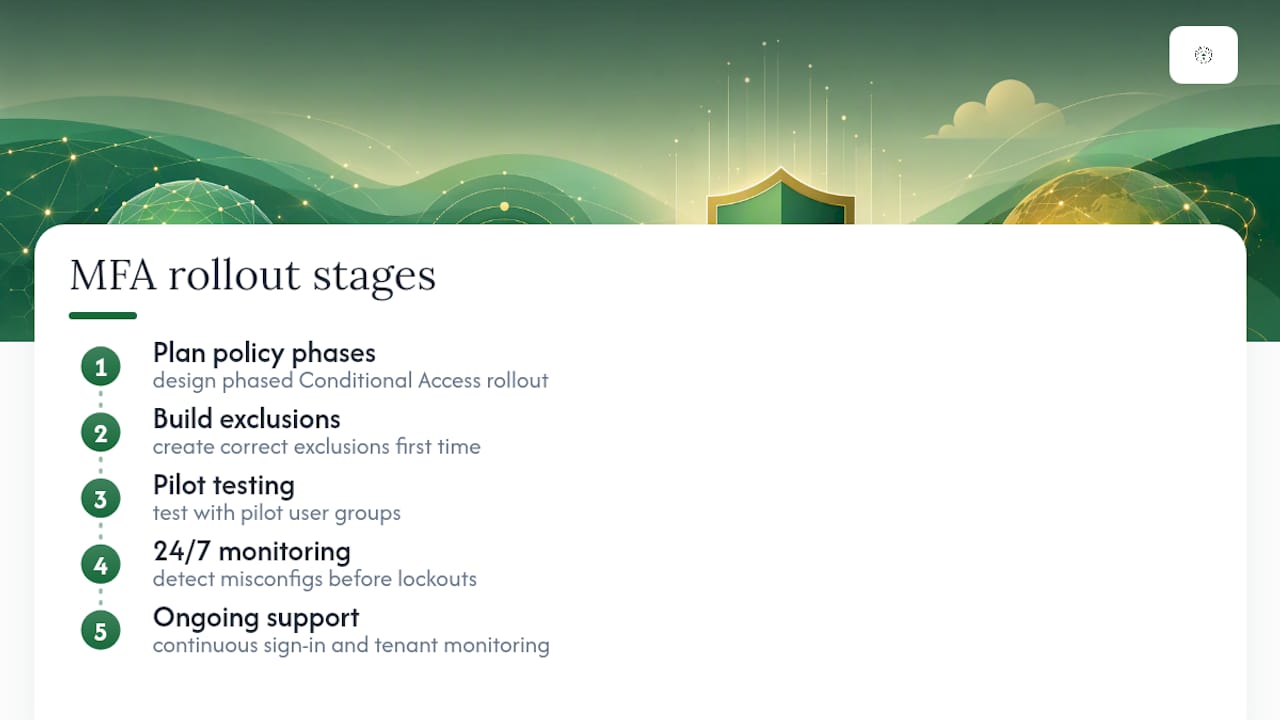
Great Plains Networking is the alternative to a weekend of trial-and-error Conditional Access testing. We plan the policy phases, build the exclusions correctly the first time, and run 24/7 monitoring so a misconfigured rule gets caught before it locks out your front desk.
We handle MFA planning, Conditional Access design, pilot group testing, and ongoing sign-in monitoring for small offices and professional practices. Our Microsoft 365 support covers the setup work directly, and our cybersecurity services keep watching your tenant after the rollout is done, not just on the day it launches. If your practice handles regulated data, our guide on securing Microsoft 365 for law firms shows what a compliant setup looks like in practice.
Ready to stop guessing which policy setting will lock someone out? Talk to our managed IT team about a Conditional Access plan built for your tenant, your apps, and your staff.
Key Microsoft Documentation to Bookmark
These are the primary sources to keep close while you build out your tenant's MFA policies:
- Plan Conditional Access, for phased rollout templates and the 240-policy limit.
- Get started with Microsoft Entra multifactor authentication, for authentication method guidance.
- Security defaults, for the tenant-wide baseline setup.
- Set up multi-factor authentication for Microsoft 365, for step-by-step admin center toggles.
For a partner perspective on identity controls beyond Microsoft's own documentation, Smart Management's 2026 Microsoft 365 security practices guide covers related implementation details worth a read.
Sources
- Plan Conditional Access - Microsoft Learn
- Get started with Microsoft Entra multifactor authentication - Microsoft Learn
- Security defaults - Microsoft Learn
FAQ
Is MFA Required for Microsoft 365?
Microsoft doesn't force every tenant into MFA by law, but Security Defaults now ships enabled on new tenants and enforces registration within 14 days. Skipping MFA entirely leaves you exposed to the legacy-authentication attacks that account for a large share of account compromise attempts.
How Do I Set Up MFA on My Office 365 Account?
Enable Security Defaults in the Entra admin center under Identity > Properties if you have no Entra ID P1 license, or build a Conditional Access policy requiring MFA if you do. Users then register their method through the My Security Info page.
How Do I Know if MFA Is Enabled in Office 365?
Check Identity > Overview > Properties in the Entra admin center to confirm Security Defaults status, or review your Conditional Access policies under Protection > Conditional Access. Sign-in logs will also show MFA prompts appearing for recent logins if it's active.
How Do I Update My Multifactor Authentication Settings in Office 365?
Go to the authentication methods policy in the Entra admin center to change which methods, Authenticator, FIDO2, SMS, are available to users tenant-wide. Individual users update their own registered methods through the My Security Info page at any time.