

For most small offices, the most secure and practical configuration is WPA3-Enterprise with EAP-TLS on the employee SSID, paired with separate VLANs for guest and IoT/POS traffic. Client isolation on the guest network, a proper site survey, and ongoing WIDS/WIPS monitoring round out the setup. Everything else in wireless security is a variation on that core design.
TL;DR:
- Implement WPA3-Enterprise with EAP‑TLS for certificate-based mutual authentication, especially when managing more than a few devices or complying with regulations like HIPAA.
- Segment the network into three to five VLANs corresponding to SSIDs for employees, guests, IoT, and POS, with firewall rules controlling cross-VLAN traffic to prevent lateral movement.
- Use a captive portal with strict VLAN isolation and bandwidth caps for guest access, avoiding simple WPA2 passwords that provide minimal protection.
- Regularly run site surveys, enable ongoing monitoring with WIDS/WIPS, and update firmware to catch rogue access points and vulnerabilities early.
- Require strong, unique passwords with MFA for all network accounts, and enforce device posture checks through basic NAC or device management to prevent unauthorized access.
Table of Contents
- What Is a Secure Wi-Fi Setup for an Office?
- WPA3-Enterprise vs WPA3-Personal: Which Authentication Model Fits?
- How Should You Segment Your Office Network by SSID?
- How Do You Set Up Guest Wi-Fi Securely?
- How Do You Secure IoT Devices, Printers, and POS Terminals?
- Choosing RADIUS and Managing Certificates for EAP-TLS
- Deployment Basics: Site Survey and AP Placement
- How Often Should You Monitor and Reassess Wi-Fi Security?
- Maintenance and Policy: Keeping Controls From Drifting
- How Do You Verify Your Secure Wi-Fi Setup Actually Works?
- Password Policy and Multi-Factor Authentication for Network Access
- What Is Network Access Control and Why Does It Matter?
- Firewall and Segmentation Beyond VLANs
- Encrypting Data in Transit and at Rest
- Building an Incident Response Plan for Wi-Fi Breaches
- Training Staff on Secure Wi-Fi Habits and Phishing Risks
- Why Small Offices Should Prioritize Simplicity Over Perfection
- How Great Plains Networking Helps Secure Your Office Wi-Fi
- Sources
- FAQ
What Is a Secure Wi-Fi Setup for an Office?
A secure office Wi-Fi setup starts with three decisions: how devices prove who they are, how different types of traffic get separated, and how you'll know if something goes wrong. Get those three right, and most of the common breach paths close on their own.
The quick version: enable WPA3 (or WPA3 transition mode if you have older devices), enable 802.11w/PMF to block deauthentication attacks, and split your network into distinct SSIDs mapped to VLANs so a compromised printer can't reach your accounting server. Do this in a week, not a quarter.
Here's the checklist for immediate action:
- Enable WPA3 or WPA3 transition mode. Transition mode lets older WPA2 devices coexist while WPA3-capable devices get the stronger Protected Management Frames and cryptography WPA3 requires.
- Turn on 802.11w (PMF). This stops attackers from forging deauth frames to knock clients offline or capture handshake data.
- Create separate SSIDs and VLANs for employees, guests, IoT, and POS. One flat network means one compromised device threatens everything on it.
- Enable client isolation on the guest SSID. Guests shouldn't be able to see or reach each other's devices, let alone yours.
- Rotate PSKs on any password-based SSID. If a former employee or old vendor still knows the Wi-Fi password, that password is worthless as a security control.
- Schedule a site survey and turn on WIDS/WIPS or a managed monitoring service to catch rogue access points before they catch you.
- Apply pending firmware updates and lock down the AP management interface so it isn't reachable from guest or IoT VLANs.
Pro Tip: If you can only do one thing this week, rotate your Wi-Fi passwords and turn on client isolation for guests. Those two changes take under an hour combined and eliminate two of the most common small-office exposure points.
WPA3-Enterprise vs WPA3-Personal: Which Authentication Model Fits?
The gold standard for business Wi-Fi is WPA3-Enterprise using EAP-TLS, because it relies on digital certificates instead of a shared password. Every device authenticates with its own certificate, and the server authenticates back to the device, which is why security engineers call it mutual authentication. There's no password to phish, guess, or leak in a group chat when someone leaves the company. This is what University of Iowa ITS points to as the strongest available option for business networks, and it's the reason EAP-TLS removes shared-credential attacks from the threat model entirely.
WPA3-Enterprise makes the most sense once you're managing more than a handful of devices, operating under compliance requirements like HIPAA or CMMC, or simply tired of resetting a shared password every time staff turnover happens. If you don't have the infrastructure yet, WPA3-Personal (a strong, unique PSK) is a legitimate operational compromise, not a failure. Just treat it as a stepping stone, not the destination.
A few nonnegotiables regardless of which mode you pick:
- Disable WEP and TKIP entirely. Both are broken protocols that modern attack tools defeat in minutes.
- Require 802.11w (PMF) on every SSID that supports it.
- If you're using PEAP or PEAP-MSCHAPv2 as an interim step toward EAP-TLS, enforce server certificate validation on client devices. Skipping this step lets attackers stand up a fake RADIUS server and harvest credentials.
- Run WPA3 in transition mode only as long as necessary. Legacy WPA2 clients are the reason most offices can't go WPA3-only immediately, but that list should shrink every quarter, not stay static.
How Should You Segment Your Office Network by SSID?
Most small offices do best with three to five SSIDs, each mapped to its own VLAN: employee, guest, IoT, POS, and sometimes voice. That range balances security against airtime efficiency, since every additional SSID broadcasts overhead traffic that eats into available bandwidth, according to segmentation guidance for small-business Wi-Fi. Stack ten SSIDs on a couple of access points and you'll slow everyone down while gaining little extra security.
The real protection comes from what happens after the SSID: VLAN tagging, per-VLAN DHCP scopes, and firewall rules that explicitly block guest and IoT traffic from talking to internal servers or to each other. This is sometimes called east-west traffic control, and it's the difference between a compromised smart thermostat being an annoyance and it being a launchpad into your file server.
| SSID | VLAN purpose | Typical access |
|---|---|---|
| Employee | Corporate resources, file shares, printers | Full internal access, firewall-permitted |
| Guest | Internet-only | Blocked from all internal VLANs |
| IoT | Cameras, thermostats, smart locks | Outbound internet only, no internal access |
| POS | Payment terminals | Locked to payment processor endpoints only |
| Voice | VoIP phones | Prioritized (QoS), isolated from data VLANs |
A few operational details matter as much as the diagram. Set per-SSID bandwidth caps so a guest streaming video doesn't choke your VoIP calls. Place the captive portal authentication point on the guest VLAN's gateway, not buried inside your core switch configuration, so it's easy to audit later. And write the whole thing down. A one-page network diagram with VLAN IDs, SSID mappings, and firewall rule summaries turns your next audit, insurance renewal, or new hire's onboarding into a five-minute conversation instead of an archaeology dig.
For a deeper walkthrough of separating wireless traffic from wired resources, see this guide on segmenting office IT and OT networks.
How Do You Set Up Guest Wi-Fi Securely?
An open guest SSID with a captive portal is often the right call, not a security shortcut. Forcing visitors to enter a WPA2 password off a sticky note on the wall doesn't add meaningful protection, and it frustrates the clients, vendors, and delivery drivers who just need internet access for ten minutes. The captive portal does the real work.
- Place the guest SSID on an internet-only VLAN. No route to internal file shares, printers, or servers should exist, full stop.
- Enable client isolation. Guests on the same Wi-Fi shouldn't be able to see each other's laptops or phones, which also blocks a common vector for peer-to-peer attacks.
- Set bandwidth caps per client or per SSID. A single guest running a large download shouldn't degrade your team's video calls.
- Test the captive portal and firewall rules before opening it to the public. Connect a test device, confirm it can reach the internet and nothing else, and verify the portal loads correctly on both phones and laptops.
- Surface privacy and acceptable-use terms in the portal itself. A short, plain-language notice covering data collection and acceptable use protects you legally and sets expectations, according to Cisco's guidance on guest Wi-Fi setup.
Retail and hospitality settings lean on captive portals for marketing capture too, but even a law firm or dental office benefits from the acceptable-use framing. It's a small addition that headed off more than one uncomfortable conversation for offices that skipped it.
How Do You Secure IoT Devices, Printers, and POS Terminals?
Most IoT devices, printers, and point-of-sale terminals don't support 802.1X authentication, so they can't join your EAP-TLS employee SSID even if you wanted them to. That's fine. Treat the entire IoT/POS VLAN as untrusted by default and build outbound-only firewall rules around it.
- Restrict IoT and POS VLANs to outbound internet access only, with zero visibility into corporate VLANs.
- Use per-device or per-class PSKs where your access points support it. Features like Aruba's Multi-PSK or UniFi's per-SSID PSK let you assign a distinct password to each device category, so revoking access for one compromised camera doesn't mean relaying every device on the network.
- Keep a running inventory of every connected device, including firmware version. IoT devices are notorious for shipping with vulnerabilities that never get patched because nobody remembers they exist.
- If a device needs specific ports open (a POS terminal reaching a payment processor, for instance), scope the firewall rule to that exact destination and port. Don't open the VLAN wholesale because one device needed one connection.
The POS VLAN deserves particular attention if you handle card payments, since payment card industry requirements generally expect this kind of isolation as a baseline, not an option.
Choosing RADIUS and Managing Certificates for EAP-TLS
Running EAP-TLS means running RADIUS, and you have two real paths: cloud RADIUS or self-hosted. Cloud RADIUS services tie into identity platforms like Azure AD or Google Workspace and hand you a working authentication server without a physical box to patch, which is generally the better fit for a small office without a dedicated network engineer. Self-hosted options like FreeRADIUS or Windows NPS give you more granular control, but they demand real ongoing administration and a secure place to put the server.
- Cloud RADIUS reduces operational overhead and integrates with identity providers you may already use for email and file storage.
- Self-hosted RADIUS suits offices with existing IT staff who want full control over authentication policy and logging.
- Certificate issuance works best through MDM-based automated enrollment or SCEP, since manual certificate installation on every laptop and phone doesn't scale past a handful of devices.
- Plan for revocation from day one. Build a CRL or OCSP process so a lost laptop or departing employee's certificate can be killed immediately, not just deleted from a spreadsheet.
- Place the RADIUS server on a management VLAN or DMZ, reachable only by access points and administrators, never by general employee or guest traffic.
- Log every authentication attempt, success and failure alike, and set alerts for repeated failures, which often signal a misconfigured device or an active attack.
Pro Tip: If your team already uses mobile device management for laptops and phones, EAP-TLS certificate enrollment is far less painful than it sounds. Automated enrollment through your existing MDM turns what used to be a manual, error-prone process into something that happens silently during device setup.
Deployment Basics: Site Survey and AP Placement
Run a site survey before you buy or mount a single access point, not after coverage complaints start rolling in. A proper survey identifies interference sources, dead zones, and the actual number of APs your space needs, producing a coverage map you can hand to whoever installs the hardware.
- Conduct the site survey first. Expect a coverage map, a list of interference sources (microwaves, thick concrete, neighboring networks), and specific AP placement recommendations.
- Size AP count to the space, not to a guess. Tune transmit power so coverage overlaps enough for roaming but doesn't create excessive co-channel interference.
- Disable legacy data rates (802.11b and early 802.11g speeds) to shrink your attack surface and improve overall airtime efficiency.
- Enable 802.11k/v/r where your hardware supports it, especially if you run VoIP phones that need seamless roaming between access points.
- Prefer same-vendor access points for consistent roaming behavior, and lock down AP management interfaces by changing every default credential and restricting access to the management VLAN only.
CISA's guidance on securing wireless networks treats the site survey as foundational, not optional, precisely because it's the step most small offices skip when budgets get tight.
How Often Should You Monitor and Reassess Wi-Fi Security?
WIDS/WIPS systems scan continuously for rogue access points, unauthorized clients, and unusual authentication patterns, catching threats a firewall alone will never see. Even offices that don't run enterprise-grade wireless still benefit from rogue AP scanning, since anyone can plug an unauthorized access point into an open wall jack and create a backdoor around your entire security stack.
- Configure RADIUS logging with alerts for repeated failed authentications, which often flag either a misconfigured device or an active credential attack.
- Feed those logs into a SIEM or managed monitoring platform rather than letting them sit unread on a local server.
- Follow NIST's recommended cadence: a full technical assessment at least annually, with quarterly checks if you don't have continuous monitoring in place.
- Bring in third-party testers periodically. A managed detection service combined with a periodic outside assessment, as CISA notes, tends to give small offices the best security return for the money spent.
Assessment cadence, plainly stated: annual is the floor. Quarterly is the safer bet if nobody's watching the network in real time between assessments.
Maintenance and Policy: Keeping Controls From Drifting
Security setups decay the moment nobody's watching them. Firmware updates for access points, controllers, and RADIUS servers need a real schedule, not an "eventually" pile in the IT queue.
- Patch APs, controllers, and RADIUS servers on a recurring, calendar-driven cadence rather than reactively.
- Build offboarding into your process: revoke certificates, disable accounts, and rotate PSKs the same day someone leaves.
- Set clear BYOD rules covering which personal devices can join which SSID, and whether dual connections (cellular plus Wi-Fi) are allowed on sensitive systems.
- Confirm legacy protocols like WEP and TKIP stay disabled after every firmware update, since some devices silently re-enable them on reset.
- Keep your configuration baseline documented and dated, so drift from the original design is obvious the next time someone reviews it.
How Do You Verify Your Secure Wi-Fi Setup Actually Works?
Configuring the network is half the job. Confirming it behaves the way you designed it is the other half, and skipping this step is how offices discover a firewall rule typo six months later, during an actual incident.
- Test VLAN isolation directly. Connect a device to the guest VLAN and confirm it cannot reach any internal resource. Do the same for IoT.
- Walk through the captive portal flow end to end, checking session timeouts and bandwidth caps on both phones and laptops.
- Run a Wi-Fi analyzer app to scan for unexpected access points broadcasting your SSID names, a classic rogue AP tactic.
- Confirm RADIUS logs are generating expected telemetry, including failed-auth alerts, so you know the monitoring you built is actually working before you need it.
- Schedule a third-party wireless assessment for anything beyond basic verification. Internal testing catches obvious misconfigurations; outside eyes catch the subtle ones.
For related groundwork on spotting weaknesses before they become incidents, this piece on identifying IT vulnerabilities in a business network covers complementary ground.
Password Policy and Multi-Factor Authentication for Network Access
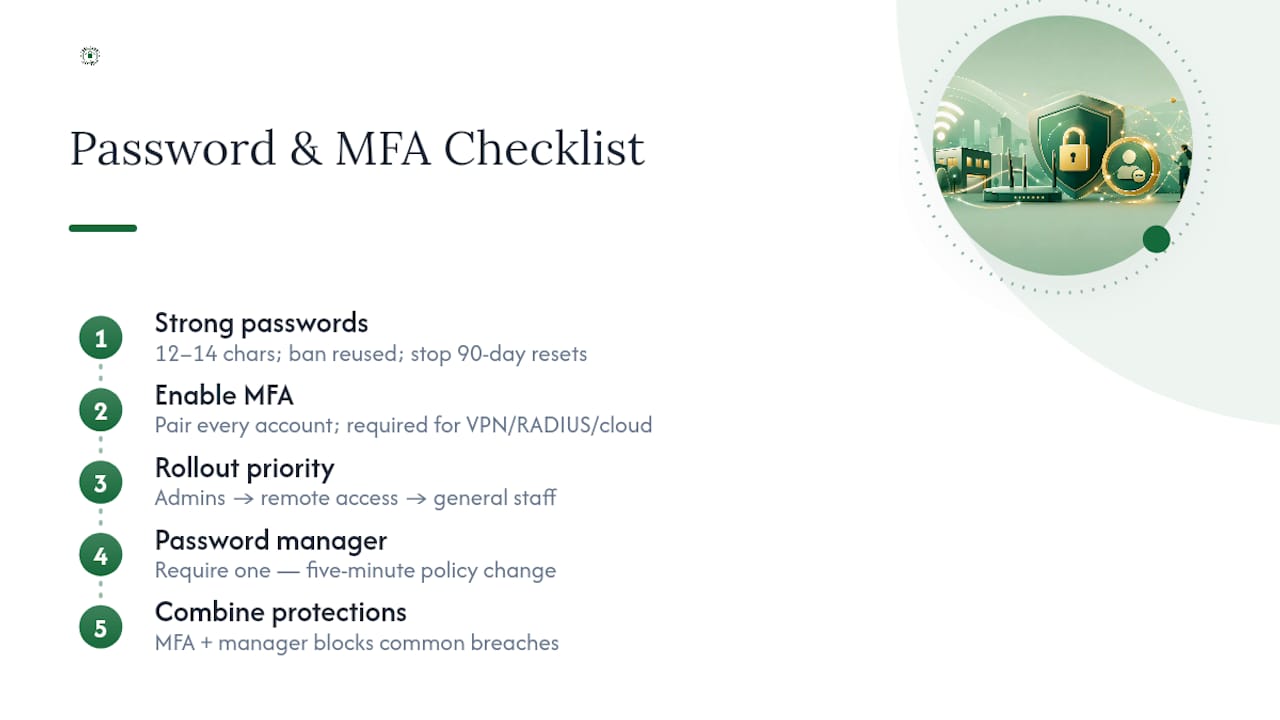
Wi-Fi encryption protects the connection, but weak account passwords undo most of that work from the inside. Every account with network access, from the office manager's laptop login to the RADIUS admin console, needs a genuinely strong, unique password, not a variation on the same one reused since 2019.
Require a minimum length of 12 to 14 characters, ban commonly reused passwords, and stop forcing arbitrary 90-day resets that push people toward predictable patterns like appending a number. Instead, pair every password with multi-factor authentication (MFA), particularly for VPN access, RADIUS administration, and any cloud portal tied to your network infrastructure. MFA turns a stolen password from a full breach into a dead end, since the attacker still needs the second factor.
Prioritize MFA rollout in this order: administrative accounts first (network gear, RADIUS, firewall consoles), then any remote access tools, then general staff accounts. A compromised admin login is far more damaging than a compromised guest Wi-Fi password, so your MFA budget and urgency should reflect that.
Password managers solve the practical problem of remembering dozens of unique credentials without resorting to sticky notes or spreadsheets. If your office doesn't already require one, that's a five-minute policy change with an outsized security return. Combine it with MFA and you've closed the two most common entry points attackers use against small businesses: guessed passwords and reused credentials from unrelated data breaches.
What Is Network Access Control and Why Does It Matter?
Network access control (NAC) checks a device's compliance status before letting it fully join the network, rather than trusting anything that knows the Wi-Fi password. A NAC system can verify that a laptop has current antivirus, an unexpired certificate, and an approved operating system version before granting access beyond a quarantine VLAN.
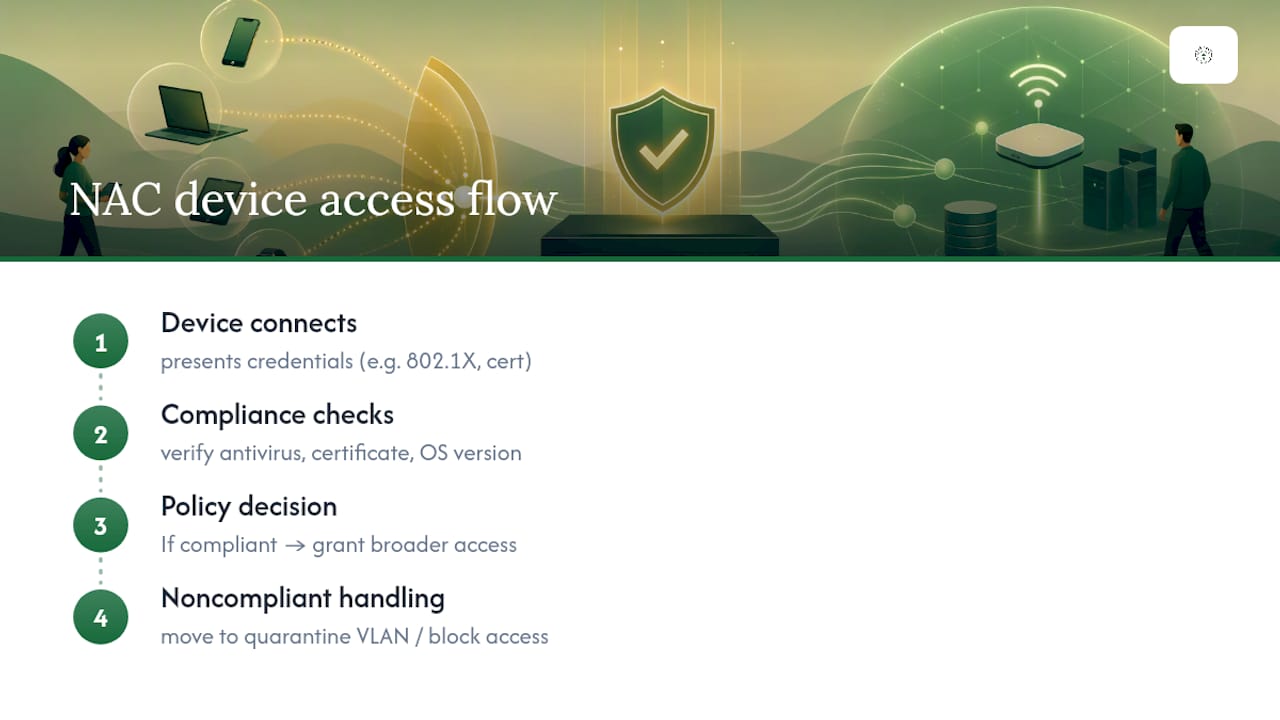
For small offices, full enterprise NAC platforms are often overkill, but the underlying principle scales down easily. Combining 802.1X authentication with basic device posture checks, even something as simple as requiring a managed device certificate issued through MDM, achieves much of what NAC promises without the operational overhead of a dedicated appliance.
The practical benefit shows up during incidents. If a device is compromised or a certificate looks suspicious, NAC (or its lightweight equivalent) lets you pull that device off the network immediately without touching anyone else's access. Without any access control layer, your only lever is often "change the Wi-Fi password for everyone," which is disruptive and doesn't even work against certificate-based attackers.
Unauthorized devices attempting to join, whether it's an employee's unmanaged personal phone or something worse, get flagged and blocked automatically rather than slipping onto the employee VLAN because they guessed or phished a password. That gap between "has credentials" and "is actually a compliant, known device" is exactly what NAC closes.
Firewall and Segmentation Beyond VLANs
VLANs separate traffic types, but they don't stop an attacker who's already compromised a device on the employee VLAN from moving laterally to another employee's machine. That's where internal firewall rules and microsegmentation pick up where VLANs leave off.
Configure firewall rules between VLANs, not just at the internet edge. A well-designed setup blocks the guest and IoT VLANs from reaching internal resources, but it should also limit what employee devices can reach on other employee devices. Does the front-desk computer really need to talk directly to the accounting workstation? In most offices, the answer is no, and a firewall rule enforcing that limits how far an attacker can spread after landing on one machine.
Consider a dedicated firewall appliance or a next-generation firewall with application-layer inspection rather than relying solely on your router's basic access control lists. These can identify and block malicious traffic patterns that a simple VLAN boundary would let through unnoticed.
Segment servers by function too. Your file server, your practice management or accounting software server, and your backup target shouldn't all sit on one flat internal network reachable by every workstation. Layered segmentation, VLANs at the network level and firewall rules at the traffic level, means a single compromised laptop becomes a contained incident instead of an open door to everything else on the network.
Encrypting Data in Transit and at Rest
A secure Wi-Fi connection encrypts traffic between a device and the access point, but that's only one leg of the journey your data takes. Traffic moving between internal servers, and data sitting on a hard drive after it arrives, both need their own encryption.
For data in transit, that means enforcing HTTPS/TLS for any internal web applications, using encrypted protocols (SFTP instead of plain FTP, for instance) for file transfers, and requiring a VPN for remote employees connecting back to office resources. WPA3 encrypts the wireless hop; TLS and VPN encryption cover everything after that.
For data at rest, encrypt server drives and backup storage so that physical theft of a machine or a drive doesn't hand an attacker readable files. Most modern operating systems include built-in full-disk encryption at no extra cost, and enabling it is often a checkbox, not a project.
Backups deserve particular attention here, since they're frequently the least protected copy of your most sensitive data. An encrypted, tested backup does double duty: it protects against ransomware recovery scenarios and against a stolen backup drive turning into a data breach on its own. If your current backup approach hasn't been tested for actual restoration recently, that's worth fixing before worrying about anything more advanced.
Building an Incident Response Plan for Wi-Fi Breaches
A wireless-specific incident response plan answers three questions fast: how do we know something's wrong, how do we contain it without shutting down the whole office, and who do we call. Waiting to figure this out during an actual breach costs hours you don't have.
Detection typically comes from RADIUS failed-auth alerts, WIDS/WIPS rogue AP notifications, or an employee reporting a device behaving strangely. Define in advance what triggers an actual response versus a routine log entry, so your team isn't paralyzed trying to decide if an alert matters.
Containment on a segmented network is far less disruptive than on a flat one. If IoT and guest traffic are already isolated, a compromised device on the IoT VLAN can often be disconnected or blocked without affecting employee connectivity at all. That's one more reason segmentation isn't just a performance nicety, it's what makes incident response survivable without an all-hands network outage.
Document who has authority to disable a compromised SSID, revoke a certificate, or force a password reset outside business hours, since breaches rarely wait for a convenient Tuesday morning. Keep contact information current for whoever handles your network, whether that's internal staff or a managed provider, and rehearse the plan at least once so the first real incident isn't also the first test of the process.
Training Staff on Secure Wi-Fi Habits and Phishing Risks
The strongest wireless configuration in the world doesn't stop an employee from connecting to a spoofed "Free Airport Wi-Fi" network or clicking a phishing link that harvests their network credentials. Technical controls and staff awareness have to work together, not one instead of the other.
Cover a few specific habits in staff training rather than generic "be careful online" advice. Teach employees to verify SSID names before connecting anywhere outside the office, since rogue APs frequently mimic legitimate network names almost exactly. Explain why sharing the office Wi-Fi password with a personal device or a friend undermines the entire access model you've built. And walk through what a credential-phishing attempt actually looks like, since these increasingly mimic legitimate IT or vendor communications closely enough to fool a distracted reader.
Run this training at onboarding and refresh it annually at minimum, tying it to the same cadence as your technical security assessment. A ten-minute session twice a year, paired with a simulated phishing test, does more to close the human gap than a lengthy policy document nobody reads past the first page. For guidance on building this into a broader security program, see this overview of setting up business network security.
Why Small Offices Should Prioritize Simplicity Over Perfection
The conventional advice treats WPA3-Enterprise as mandatory and everything short of it as a failure. That's unrealistic for a five-person law office without dedicated IT staff. The better standard: use EAP-TLS wherever feasible, harden WPA3-Personal with strong rotation and segmentation where it isn't yet, and stop treating "not perfect" as "not secure enough to bother."
What actually separates offices that stay secure from offices that get breached isn't the sophistication of their encryption. It's whether someone is watching the network daily and whether there's an actual inventory of connected devices. Proactive monitoring catches the rogue access point or the failed-auth spike before it becomes a headline. A device inventory, paired with MDM, is what makes certificate management sustainable instead of a one-time project that decays within a year.
— Nicholas
How Great Plains Networking Helps Secure Your Office Wi-Fi
Most small offices don't have a full-time network engineer to run a site survey, configure RADIUS, and monitor for rogue access points every week. An IT support provider can fill that gap with proactive, plain-language services designed for small businesses and backed by 24/7 monitoring that catches issues before they disrupt your day.
A free network assessment is the lowest-friction way to find out where your current setup stands, covering site survey findings, segmentation gaps, and a prioritized list of fixes ranked by actual risk. If you want an even faster first look, the 10-minute readiness audit gives you a quick read on where things stand before committing to anything bigger. From there, network management and managed IT support cover the ongoing work: firmware updates, RADIUS and certificate maintenance, and continuous monitoring, all delivered with same-day response and no long-term contract required. Start with the free assessment and see exactly what your network needs.
Sources
- NIST SP 800-153: Guidelines for Securing Wireless Local Area Networks (WLANs)
- Wi‑Fi CERTIFIED WPA3 technology overview
- A Guide to Securing Networks for Wi‑Fi (CISA)
- WPA3 security transition (University of Iowa ITS)
FAQ
What Is the Most Secure Wi-Fi Option for a Business?
WPA3-Enterprise with EAP-TLS is the most secure option currently available, because it uses certificate-based mutual authentication instead of a shared password, according to University of Iowa ITS. If EAP-TLS isn't feasible yet, a strong, rotated WPA3-Personal password combined with VLAN segmentation is a reasonable interim step.
How Do I Set Up Wi-Fi Securely in an Office?
Start with a site survey to determine AP placement and coverage, then configure WPA3 with 802.11w enabled and separate SSIDs mapped to VLANs for employees, guests, and IoT/POS devices. Layer in RADIUS-based authentication for employee access, firewall rules blocking cross-VLAN traffic, and ongoing monitoring through WIDS/WIPS or a managed service.
What Is the Most Secure Wi-Fi Setting to Use?
The strongest combination is WPA3-Enterprise authentication paired with 802.11w (Protected Management Frames) enabled, which together provide certificate-based authentication and protection against deauthentication attacks. Disable WEP and TKIP entirely, since both are outdated protocols that modern tools can defeat quickly.
How Often Should I Reassess My Office Wi-Fi Security?
NIST recommends a full technical assessment at least annually, with quarterly checks if you don't have continuous monitoring in place. Offices using a managed monitoring service can often rely on that continuous coverage between annual deep-dive assessments.
Can Greatplainsnetworking Help Set Up a Secure Office Network?
Yes. Greatplainsnetworking offers a free network assessment and ongoing network management for small businesses in Norman, Moore, and Oklahoma City, covering segmentation, monitoring, and RADIUS configuration. Pricing for ongoing managed support is available directly through the site rather than listed publicly.