
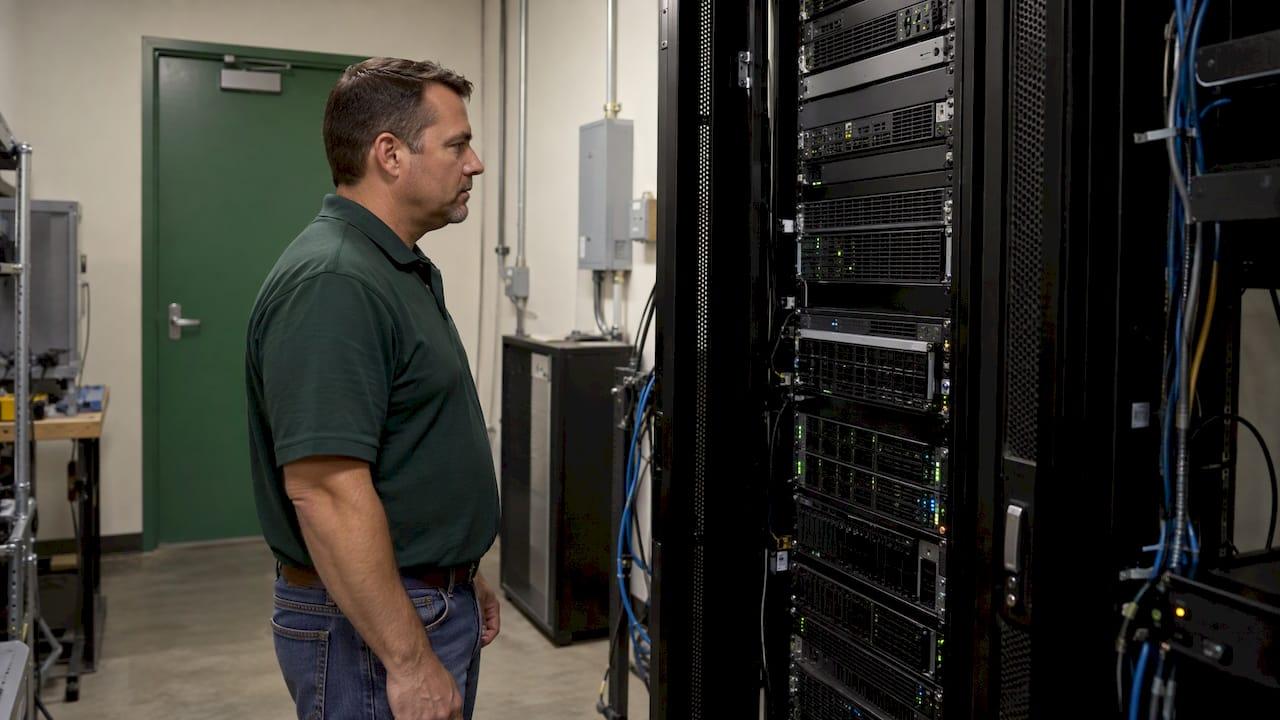
A healthy server is one where the warning signs get seen before users notice anything. The checklist below covers what a small business should look at every day, every week and every month: backups, updates, disk space, services, security and records. It is a Windows Server routine, written for owners and office managers in dental practices, law firms, manufacturing shops and nonprofits. The checks only work when someone does them every time, including the week your team is busy. That is why we run them for Oklahoma City-area businesses through 24/7 monitoring, so a failing disk or a failed backup is flagged and handled before it turns into downtime.
Key Takeaways
- Most server problems announce themselves first: a drive filling up, a backup that quietly failed, a service that stopped. A routine catches them while they are still small.
- Split the work by cadence. Daily checks look at alerts and backup results, weekly checks look at trends and pending updates, monthly checks cover patching, access and restores.
- A backup that reports success has not proven anything. CISA tells small businesses to test partial and full restores on a schedule and write down the restoration plan.
- Patching, multi-factor authentication (MFA) and limiting administrator access are the security checks with the biggest payoff, according to CISA's small-business guidance.
- Write down every check, who did it and what they found. The record is what lets you spot patterns, and what auditors and insurers ask to see.
Table of Contents
- What a server health check is really for
- Daily checks (5 to 10 minutes, or automated)
- Weekly checks (20 to 30 minutes)
- Monthly checks (one to two hours)
- Quick reference: who checks what, and when
- Security checks that belong on every server list
- Add your industry's requirements
- Document every check
- Why a routine like this often slips, and how we handle it
- Frequently asked questions
- Sources
What a server health check is really for
Your server is the machine, physical or virtual, that holds shared files, runs line-of-business software, handles logins or hosts a database. When it stops, everybody stops. A dental practice cannot pull up charts. A law firm cannot reach matter files. A shop floor cannot pull job specifications.
A health check answers three questions:
- Is it running, and are the things people depend on (file access, logins, name lookups, your practice or case software) actually working?
- Is it about to stop? Disks filling, hardware errors, expiring certificates and failed updates all show up first as small warnings.
- Can you recover if it does stop? This means a backup you have restored, not just one you have scheduled.
The checklist is organized around those questions. Anything that is not on the list should be justified by your own software or industry rules, which we cover near the end.
Daily checks (5 to 10 minutes, or automated)
Daily checks are about alerts and failures. Microsoft's own maintenance guidance for server environments lists verifying that scheduled maintenance ran and reviewing event logs, performance and alerts among the daily tasks (Microsoft Learn).
Backup results
Open last night's backup report and confirm the job finished, finished inside its window, and included everything it is supposed to include. A new database or a new shared folder is not automatically covered by an old backup job. CISA's guidance for managed providers and small businesses also tells organizations to review backup logs for failures and inconsistencies (CISA Insights).
Where it goes wrong: a job that shows green while skipping open files, or a job that ran but whose alert email goes to a mailbox nobody reads. Confirm that failure alerts reach a person.

Alerts and unexpected reboots
Look at overnight alerts and check whether the server restarted when you did not plan it. An unplanned reboot is often the first visible sign of a failing update, a power problem or a hardware fault.
Disk space and the services people use
Check free space on every volume, not just the C: drive. Then check that the services your staff rely on respond: file shares open, logins succeed, your practice-management or case-management application loads. A service can show as "running" in a list and still not work for users, so test the experience, not just the process.
For a quick look at uptime and recent restarts, Windows uptime and Event Viewer checks show where to find that information on a Windows machine.
Weekly checks (20 to 30 minutes)
Weekly checks look for trends rather than single failures.
- Disk growth. Compare this week's free space with last week's. A volume that grows a few gigabytes a day needs attention far sooner than a static archive with the same free percentage. Judge by how many days you have left, not by a fixed percent.
- Event logs. Scan the System and Application logs for repeated errors: disk errors, failed logons, service crashes, failed scheduled tasks. One error is noise. The same error every night is a diagnosis waiting to happen.
- Pending updates and reboots. Confirm what is waiting to install and whether the server has been waiting on a restart. Microsoft's maintenance guidance also lists clearing unnecessary files and checking disk space among weekly tasks (Microsoft Learn).
- Backup completion over the week. Look at all seven days, not only last night. Two failures in seven days is a problem even if the last run was green.
- Security tool status. Make sure antivirus or endpoint protection is running, updated and reporting on the server, and review any detections.
- Time synchronization and certificates. Servers that drift out of sync with the domain cause strange login failures. Expiring certificates cause outages on a fixed date, which makes them one of the most avoidable ones.
If you manage Windows jobs yourself, the Task Scheduler command line supports daily, weekly and monthly schedules, so recurring maintenance tasks can run on a timetable (Microsoft Learn: schtasks create). Space backup jobs so they do not overlap.
Monthly checks (one to two hours)
Monthly work is where the larger risks get closed.
Patch cycle
CISA calls patching one of the most cost-effective security practices, noting that many attacks succeed because the victim was running software with a known fix available. It directs businesses to prioritize vulnerabilities on its Known Exploited Vulnerabilities Catalog, a public list of flaws attackers are using right now (CISA). In practice:
- List what is missing on each server.
- Install what is on the exploited list first.
- Apply updates to one less critical machine before the production server when you can.
- Reboot, then confirm that services, shares and applications work.
- Record what was installed and when.
Step 4 is where many routines stop short. Installation is not the finish line: verify afterward that the server is actually patched and still working. Our patch management policy template lays out how to set timelines and keep the evidence.
Restore test
CISA's small-business guidance says scheduling backups is not enough. Organizations should test partial and full restores, choose a backup frequency that fits the business, and write a restoration plan, because some ransomware victims discovered that restoring took far longer than they expected (CISA).
Each month, restore a handful of files or one folder to a different location and open them. Each quarter or so, restore a full system to test hardware or a virtual machine and time it. Compare that time with how long your office can actually be down. Our guide to backup restore testing walks through a 90-day schedule that produces documented proof, and disaster recovery testing explains how to rank systems by the cost of their downtime.

Access review
List who has administrator rights on the server and remove anyone who does not need them. CISA's guidance calls for least privilege, MFA enforced by technical controls (including on all administrator accounts), and no administrator rights on ordinary user laptops (CISA). Also remove accounts of staff who have left and review vendor accounts with remote access.
Hardware and capacity
Check hardware alerts from the server's management tools: drive health, fan and power supply status, memory errors. Check warranty and support dates, and look at capacity trends to decide whether storage or memory needs to be planned for in the next budget cycle rather than bought in an emergency.
Disaster recovery plan
Review the document that says who does what when the server is down. Microsoft's periodic tasks include reviewing the disaster recovery plan and running recovery tests in a lab (Microsoft Learn). Confirm the phone numbers, vendor contacts and software license keys in it are current.
Quick reference: who checks what, and when
| Check | Daily | Weekly | Monthly |
|---|---|---|---|
| Backup job result and failure alerts | Yes | Review all seven days | Test a restore |
| Alerts and unexpected reboots | Yes | Review trends | |
| Free disk space | Yes | Growth trend | Capacity plan |
| Critical services and user-facing functions | Yes | Yes | |
| Event logs | Scan for critical errors | Look for repeating errors | |
| Pending updates and reboot state | Yes | Patch cycle and verification | |
| Antivirus or endpoint protection status | Yes | Review detections | |
| Certificates and time sync | Yes | Confirm renewal dates | |
| Administrator accounts and MFA | Yes | ||
| Hardware health and warranty | Yes | ||
| Disaster recovery plan | Review, and test each quarter |
Security checks that belong on every server list
A server that is up and fast can still be one phishing email away from ransomware. These checks come from CISA's guidance for small businesses and for managed providers:
- MFA on every administrator account and on remote access. CISA says to enforce it through technical controls, not just a policy.
- Patch promptly, starting with vulnerabilities attackers are known to be exploiting.
- Least privilege. Give people the access their job needs and nothing more.
- Logs and monitoring. CISA's hardening guidance calls for preserving and correlating logs, network and host monitoring, and a baseline of normal behavior so unusual activity stands out (CISA Insights).
- Disk encryption on laptops that connect to the server, because a lost laptop should not become a data breach (CISA).
- Backups kept out of reach of the server itself. If ransomware can reach your backups from the same login, the backup shares the failure it was meant to cover.
For the network around the server, our network security basics article covers firewalls, segmentation and the checks that belong next to this list. For a broader view of protecting your business from attacks, see how security of your online presence affects customer trust.
Add your industry's requirements
The list above is the technical core. Regulated businesses add records on top of it:
- Dental and medical practices need to show that patient data is protected and recoverable under HIPAA, so backup test results and access reviews are worth keeping.
- Law firms need to demonstrate that client files are protected and available.
- Manufacturers that do defense-related work may face CMMC requirements around access, logging and patching.
- Accounting firms handling client tax data have IRS data security expectations.
We provide compliance guidance for these requirements as part of our work with Oklahoma small businesses, so the same checks that keep the server healthy also produce the paper trail.
Document every check
A checklist nobody signs is a checklist nobody did. For each cycle, record:
- the date and who performed the check
- what was found, with the actual numbers (free space, backup duration, number of patches)
- what was fixed and what is still open
- the next action and its owner
A simple spreadsheet or a ticketing system works. The value is in comparison: when free space was 40 percent three months ago and is 18 percent now, the trend tells you when to act. The records also show an insurer, auditor or client what you did and when. For patching, keep the list of updates, the date applied and the verification result.
Why a routine like this often slips, and how we handle it
The checklist is not complicated. The trouble is consistency. Daily checks get skipped when the office is busy, an alert goes to a mailbox nobody watches, and the monthly restore test is the first task to get postponed. In a small business there is rarely a dedicated IT person, so these checks fall to whoever knows the most about computers, on top of their regular job.
That is the gap our managed IT support fills. We monitor your servers 24/7 so issues are identified and resolved before they disrupt your operations, respond the same day when you need help, and explain what we find in plain language. There are no long-term contracts. Our backup and recovery service covers the backup and restore side of this list, and our cybersecurity service covers ransomware and phishing protection.
If you want to know where your own server stands against this checklist, start with our 10-minute readiness audit or the free network assessment. Both cost nothing and apply to businesses in Norman, Moore and Oklahoma City.

Frequently asked questions
How often should I check my server's health?
Check backup results and alerts every day, trends and pending updates every week, and patches, restores and administrator access every month. Daily checks can be automated with monitoring. Patching and restore tests still need a person to confirm the results.
What should a Windows Server maintenance plan include?
It should list the daily, weekly and monthly tasks above, who owns each one, and where results are recorded. Include event log review, disk space, pending updates and reboot state, critical services, certificates, time sync, antivirus status and scheduled task failures. Add a quarterly review of the disaster recovery plan.
How do I know my backups will actually work?
Restore from them. CISA advises regularly testing partial and full restores and keeping a written restoration plan, since a scheduled backup does not prove you can recover. Time the full restore and compare it with how long your business can afford to be offline.
What is the most important security check for a small business server?
Patching and MFA together do the most. CISA's small-business guidance emphasizes prompt patching, prioritizing vulnerabilities already being exploited, and enforcing MFA on administrator accounts. Remove unneeded administrator rights at the same time.
Sources
- Cyber Guidance for Small Businesses, CISA
- CISA Insights: Mitigations and Hardening Guidance for MSPs and Small and Mid-sized Businesses
- Maintenance tasks, Microsoft Learn
- schtasks create, Microsoft Learn
- Windows uptime and Event Viewer checks
- Importance of website security