
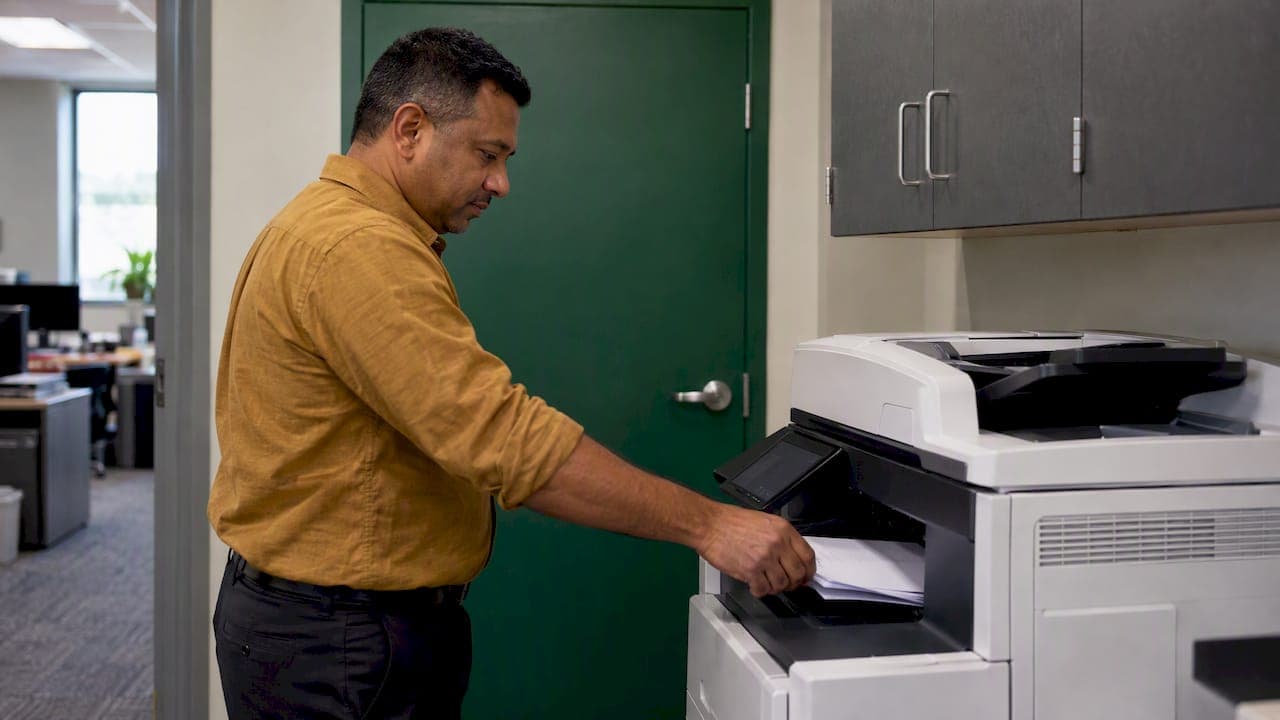
Pull printing is a setup where a print job does not come out of the printer when you click Print. It waits in a secure queue, and it prints only after you prove who you are at the device with a badge, a PIN, or a sign-in. For a small business, it is one of the few changes that protects client and patient paperwork, cuts wasted pages, and leaves a record of who printed what. You do not need an enterprise budget or a print room to use it.
This guide explains how pull printing works, where it matters most for dental practices, law firms and other regulated offices, what goes wrong in real deployments, and how to roll it out without disrupting your staff.
Key takeaways
- Pull printing holds jobs in a central queue until the user authenticates at the printer, so sensitive pages never sit in an output tray.
- The security value comes from individual authentication and logging. A shared department PIN defeats most of the benefit.
- The print system itself needs protecting: keep print servers and printer admin pages off the public internet, and put printers on their own network segment.
- Printers store data on internal drives, so pull printing is one control inside a wider plan that includes drive encryption and secure disposal.
- A small office can pilot pull printing in days, and the test should happen before every printer is switched over.
Table of Contents
- What pull printing actually is
- Why small offices are exposed more than they think
- Where compliance comes in
- How the weak points show up in practice
- Three ways to deliver pull printing
- A practical rollout for a small office
- Our perspective
- Getting help with the setup
- Frequently asked questions
- Sources
What pull printing actually is
In a normal setup, your computer sends a job straight to a specific printer. The pages come out whether or not anyone is standing there. Whoever walks past first can read them.
Pull printing, also called secure print release, follow-me printing or walk-up printing, separates two steps: sending the job and collecting it. The job goes to a holding queue, either on a local server or in the cloud. When you reach a printer, you authenticate, pick your job, and only then does it print. The FTC's guidance on digital copier data security points businesses toward requiring authentication at the device for networked copiers, which is the same idea.
Three practical consequences follow:
- Nothing is left in the tray. If you get pulled into a phone call, the job is still waiting, not lying face up in the hallway.
- Any printer works. Because the job is not tied to one device, you can release it at the closest printer or the one that has paper.
- Abandoned jobs never print. Documents that nobody collects simply expire from the queue, which saves paper and toner.
Pull printing versus a password on the printer
Many offices assume that a lock screen on the printer is the same thing. It is not. A password on the device controls who can use the printer. It does not control when a specific document prints, and it does not tie a page to a person. Real secure print release does both: it holds the job until the owner is present, and it records the release.

Why small offices are exposed more than they think
A five-person dental practice or a three-attorney firm often has one shared multifunction printer in a hallway or front office. That machine handles intake forms, billing statements, engagement letters, and settlement drafts. Several risks sit on that one device.
Unattended pages
The obvious risk is paper. A patient in the waiting area, a delivery driver, or a cleaning crew member can pick up a page that was never meant for them. In a healthcare or legal office, that is a disclosure, not just an embarrassment.
Data stored inside the machine
The less obvious risk is digital. The FTC notes that the hard drive in a digital copier stores data about the documents it copies, prints, scans, faxes or emails. If that data is not protected, it can be taken through remote access or by removing the drive. IT advisors often point out that small businesses treat the printer as a set-and-forget appliance, when it is really a computer with permanent storage. Pull printing reduces what lands in output trays, but it does not erase what the device stores. Plan for encryption, overwriting and secure disposal at the end of the machine's life.
Weak accountability
When a document goes missing, the first question is who printed it. Without logging, nobody can answer. With pull printing, each release is tied to a named user, a device and a time.
Where compliance comes in
HIPAA for dental and medical practices
The HIPAA Security Rule requires covered entities to put technical safeguards in place, including authentication that verifies a person seeking access to electronic protected health information is who they claim to be. HIPAA does not mention pull printing by name, so no one can honestly say it is required. What it does give you is a documented control: a written procedure, a configuration, and a log that shows individual release of patient documents. That is the kind of evidence a risk analysis or an audit asks to see. Your compliance officer or healthcare attorney should confirm how it fits your own risk analysis.
Law firms and client matters
Legal practitioners value the audit trail. When each release can be assigned to a client matter or cost center, you get a record of who handled a privileged document and a clean way to bill printing back to the right client. That second benefit is real money. If you are tightening overhead generally, this guide to reducing small business expenses pairs well with print tracking, because you cannot cut print costs you cannot see.
Other regulated offices
Accounting firms handling tax records, manufacturers working toward CMMC, and nonprofits holding donor or client data all have the same pattern: sensitive paper moves through a shared device. Pull printing is a low-cost way to close that gap, and it supports the access-control and audit expectations those frameworks share.
How the weak points show up in practice
We see the same four mistakes in small offices. Each one is avoidable.
Shared PINs
A department-wide PIN feels convenient and defeats the purpose. If six people use the same code, the log shows the code, not the person. Use individual credentials: a badge or card, a personal PIN, or a sign-in tied to the user's Microsoft 365 account.
Secure queue, open printer
Even with a good release system, the printer's own web management page can be a way in. If that page is reachable from the whole office network, or worse from the internet, an attacker can change settings or capture credentials. The practical fix is to isolate printers on a dedicated network segment or behind firewall rules that allow only the print server and administrators. Our guide to securing a printer fleet in one maintenance window walks through the steps.
An exposed print server
The print management software is also a target. CISA's advisory on CVE-2023-27350 describes how an unauthenticated attacker could execute code remotely on a widely used print management server, and the agency recommends blocking inbound traffic to the management ports from external sources. A later flaw, CVE-2025-34224, affected release scripts in another vendor's virtual appliance and SaaS deployments. The lesson is not to avoid pull printing. It is to patch the print server, keep it off the public internet, and protect its admin console with multi-factor authentication. If you have not turned on MFA yet, start with MFA for Microsoft 365 using Security Defaults.

No testing
Offices switch on release, find out that the scanner workflow broke or that a legacy driver fails, and staff quietly go back to printing directly. Testing before rollout, covered below, prevents that.
Three ways to deliver pull printing
The right option depends on how many people you have, what hardware you own, and whether you are already on Microsoft 365.
| Approach | How it works | Good fit | Watch for |
|---|---|---|---|
| Built-in release on the printer | Some business printers and copiers have a secure or held print feature with a PIN set at the driver | One or two devices, a tight budget | PINs are often per job and not logged centrally; setup differs by model |
| Cloud print service with release | Jobs go to a cloud queue and print when the user signs in at a supported device | Microsoft 365 offices, mixed or remote teams | Printer compatibility, licensing and sign-in method |
| On-premises print server with release software | A local server holds jobs and integrates with badge readers | Larger fleets, strict audit needs | Patching and network exposure of the server |
Microsoft documents this in its Universal Print job release settings, which describe holding jobs on a printer share until users release them. Check licensing and printer support in that documentation before you commit, because requirements change.
Whichever route you choose, a short checklist keeps the decision grounded:
- Does it authenticate each user individually?
- Does it log user, document, device and time, and can you export the log?
- Are jobs encrypted in the queue and in transit?
- Can you set an expiry so uncollected jobs are deleted?
- Does it work with your scan-to-email and copy workflows?
- Who patches it, and how quickly?
A practical rollout for a small office
You do not need a project team. Most offices of 5 to 30 people can follow this sequence.
- Inventory your devices. List every printer and copier, its model, firmware, location, and whether its admin page is reachable from outside its own network segment.
- Pick the sign-in method. Badges are fastest at the device. Individual PINs cost less. Account-based sign-in is simplest if everyone already uses Microsoft 365.
- Isolate the printers. Place them on their own VLAN or restrict access to the print server and your IT administrator. Our secure office Wi-Fi guide covers segmentation for wireless devices too.
- Pilot with one group. Choose the front office or one attorney team and one printer. Run it for a week.
- Test the edge cases. Print from a laptop off the office network, from a phone, double-sided, from a legacy application, and release at a different printer. Confirm that an uncollected job expires. Our cloud print setup guide explains how to migrate and test before you deploy.
- Turn on logging and review it. Decide who looks at the reports, how often, and where they are stored.
- Roll out to everyone, then remove direct printing. Leave no old queue behind. A forgotten direct-print queue is a hole in the system.
- Document it. Write down the procedure, the retention period for logs, and the drive disposal process. Documentation is what turns a setting into a control you can show.
What it costs
Costs vary widely by approach. A built-in feature may cost nothing but time. Cloud and server-based tools are usually priced per user or per device, and badge readers add hardware. We do not publish pricing for printing projects, so ask for a written quote that separates software, hardware, setup and ongoing support. Compare that against what your office spends on wasted pages and toner, which tracked printing will show you for the first time.
Our perspective
We work with dental practices, law firms, accounting offices, manufacturers and nonprofits around Norman, Moore and Oklahoma City, and printers are among the most neglected devices we find. Nobody owns them, nobody patches them, and everybody uses them. When an owner asks us about pull printing, we start by asking something simpler: what is on the output tray right now, and who can see it?
Our view is that pull printing is worth doing when three things are true. You handle information that would hurt a client or patient if it were seen by the wrong person. You can name a person who is responsible for the print system after it goes live. And you are willing to do the unglamorous parts: individual credentials, network isolation, patching, and a test before rollout. The software is the easy piece. The discipline around it is where offices succeed or fail.
We also believe the explanation should be plain. You should not need to learn what a VLAN is to decide whether your office needs this. You need to know what risk it removes, what it costs, what it will change for your staff, and what will be documented at the end. That is how we scope it, and we do it without long-term contracts.
— Nicholas
Getting help with the setup
If you would rather not piece this together yourself, we handle print security as part of managed IT support for small businesses in Norman, Moore and Oklahoma City. That includes locking down printer and network exposure through network management, and 24/7 monitoring so a problem on the print server is caught early. If you are not sure where your office stands, start with our 10-minute readiness audit or ask for a free network assessment, and we will tell you in plain language what to fix first.
Frequently asked questions
Is pull printing worth it for a business with fewer than 10 employees?
It can be, if you handle patient, client or financial records on a shared printer. A small office has fewer people but often less physical separation, so documents are exposed to visitors. A simple built-in or cloud-based release option is usually enough at that size.
Does HIPAA require pull printing?
The HIPAA Security Rule does not name pull printing. It does require technical safeguards, including authentication, to protect electronic protected health information. Secure print release is one way to document that control, and your risk analysis should decide whether it is appropriate for your practice.
Will pull printing slow my staff down?
It adds a few seconds at the printer to badge in or enter a PIN. Offices usually get that time back because people stop reprinting lost or misdirected jobs. A one-week pilot will show you the real effect on your team before you commit.
Does pull printing protect the data stored on the printer?
Not by itself. The printer's internal drive can still keep copies of documents it handled, as the FTC explains in its copier guidance. Add drive encryption, overwriting where the device supports it, and secure disposal when you retire the machine.
Can printers be hacked even with secure release turned on?
Yes. If the printer's management page or the print server is reachable from the internet or an untrusted network, attackers can bypass the release step. Keep devices on an isolated segment, patch regularly, and protect admin access with MFA.
Sources
- Digital Copier Data Security: A Guide for Businesses, FTC
- Summary of the HIPAA Security Rule, HHS.gov
- CISA advisory AA23-131A on CVE-2023-27350
- NVD entry for CVE-2025-34224
- Job release settings for Universal Print, Microsoft Learn