
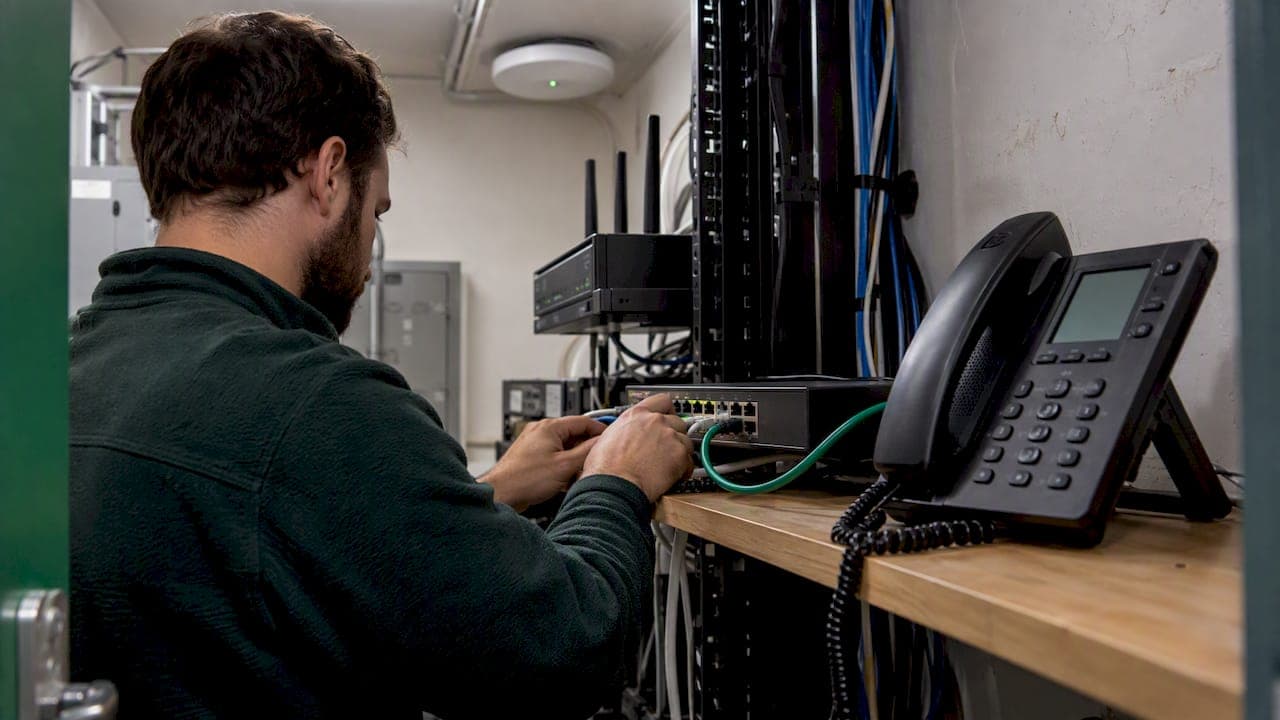
The core VoIP QoS settings are simple to state. Put voice on its own VLAN, mark voice packets with DSCP 46 (Expedited Forwarding), keep that marking intact from the phone to the router, and give those packets priority in the router's queue. Then test the result with a call running while the network is busy. The details change by vendor, but the order does not.
This guide walks through those settings in the order you should apply them, the numbers to aim for, and the checks that tell you whether they worked. It is written for an office manager or owner who works with a phone provider and a router, and for the person who has to make the change.
Key takeaways
- QoS only reorders traffic that is already competing for a link. If the connection is too small, QoS cannot fix it, so confirm bandwidth first.
- The standard configuration is a voice VLAN, DSCP 46 marking, and priority queuing on the router's WAN interface.
- Markings are usually ignored once traffic reaches the public internet. QoS protects your own network and your internet connection's upload edge, not the whole path.
- Test with a live call during a large upload. A setting you have not tested is a guess.
Table of Contents
- What VoIP QoS settings actually do
- Before you touch QoS: check the basics
- The VoIP QoS settings, step by step
- Quick reference: what to set where
- Targets: how much jitter and latency is acceptable
- How to test whether QoS is working
- Common mistakes to avoid
- Getting this done without the guesswork
- FAQ
- Sources
What VoIP QoS settings actually do
Voice is sensitive to timing. Without QoS, jitter, packet loss and high round-trip time are the common problems that affect real-time calls. Jitter means voice packets arrive at uneven intervals. Packet loss means some never arrive. Both sound like choppy audio, robotic voices or words that drop out.
QoS is the set of rules that lets a network prioritize real-time traffic such as voice and video over traffic that tolerates delay, such as large file downloads. A cloud backup, a software update or a staff member uploading a video can fill your upload bandwidth. Without a priority rule, voice packets wait in the same line as everything else.
You probably need QoS if any of these are true:
- Calls sound fine until someone uploads a large file or a backup starts.
- You run a cloud phone system, with desk phones or softphones, on the same network as computers, printers and Wi-Fi.
- You have more than a handful of users sharing one business internet connection.
- You hear problems in one direction only, which often points to a saturated upload link.
If your office has a lightly used connection, a few phones and a fast fiber line, you may never see an issue. QoS is cheap insurance, but it is not the first thing to blame for every bad call.
Before you touch QoS: check the basics
Cisco's guidance is clear that raw bandwidth must be provisioned first, because QoS cannot overcome a link that is simply too small. Work through this short list before changing any setting:
- Count your concurrent calls. Multiply by the per-call bandwidth your provider specifies. Your phone provider's network requirements page lists the figure for its codec.
- Check your upload speed, not just download. Upload is where voice usually loses.
- Use wired connections for desk phones. Mitel's guidance recommends fully switched LANs, phones on layer 2 switches rather than hubs, and Ethernet cabling run separately from power cables.
- Note your equipment. Know the make and model of your router or firewall, your switch, and your phones. QoS menus differ between them, and some consumer routers have none worth using.
This is also where a written plan helps. Planning a QoS configuration involves assessing congestion, setting goals, analyzing traffic types and choosing mechanisms, then testing whether the goals are met. For a small office the goal is usually plain: voice always wins on the WAN link, and everything else shares what is left.
The VoIP QoS settings, step by step
1. Separate voice with a VLAN
A VLAN keeps phone traffic apart from computers, which makes it easy to identify and prioritize. Mitel recommends using VLANs to segregate voice and data, tagging the voice VLAN but not the default VLAN on dual-port phones, and setting network ports to auto-negotiate.
In practice:
- Create a voice VLAN on your managed switch.
- Configure the phone ports so the phone sends voice traffic tagged and the attached PC sends untagged traffic on the data VLAN.
- Let your switch hand out the voice VLAN through LLDP-MED or your phone vendor's discovery method, so you do not configure each phone by hand.
2. Mark voice packets with DSCP 46
DSCP, or Differentiated Services Code Point, marks the six most significant bits of the Type of Service byte in the IP header so that devices can sort traffic into classes. Voice media (the RTP stream that carries your actual audio) is conventionally marked DSCP 46, also called EF for Expedited Forwarding. Call signaling, which sets up and tears down calls, is commonly marked lower, often CS3 or AF31, but your provider's guide has the exact values it expects.
Where to set the marking:
- On the phones or softphone, if the provider's device supports it. Most business desk phones can mark their own traffic.
- On the switch or router, for devices that cannot mark or whose markings you do not trust.
3. Classify at the edge, and re-mark what comes in
Cisco's guide says packet classification should happen as far toward the network edge as possible, because it is processor-intensive work and you do not want core devices repeating it. For a small office, the edge is the access switch port or the router.
RingCentral's guidelines add that inbound traffic should be re-marked to the right DSCP value as soon as it enters your network from a carrier link or a Wi-Fi access point. Wi-Fi access points are a common place where markings get lost or rewritten.
One more practical rule from the same guidelines: avoid defining QoS policies by local subnet ranges, since any subnet change would force you to rewrite the policy. Match on the voice VLAN, DSCP value, or the provider's published address ranges and UDP ports instead.
If you are deciding which device should do this work, the same logic applies as when choosing a Layer 3 switch: the device that classifies and marks traffic should have the hardware to do it at line speed.

4. Prioritize voice on the router's WAN interface
This is the setting that matters most for most small offices, because the internet connection is where the congestion happens. On the router or firewall:
- Create a traffic-shaping or QoS rule for voice, matching DSCP 46 or the provider's address ranges.
- Give it the highest priority (often called strict priority, high priority or low-latency queue).
- Set the WAN upload and download limits to slightly below your real line speeds so that the router, not your ISP's modem, controls the queue.
A concrete example comes from RingCentral's guide for the Meraki MX64. It sets a traffic-shaping rule for the provider's supernets with bandwidth management, an unlimited per-client limit, High priority, and DSCP 46 (EF). Your router's labels will differ, but the four pieces are the same: what to match, how much bandwidth, which priority, which marking.
On the Cisco side of the world, the pattern is the same in different syntax: a class that matches the voice marking, a priority queue with a bandwidth ceiling, and a default class for everything else. If a router supports it, hand the rest of the traffic fair queuing so no single device can starve the others.
5. Keep the markings consistent across every link
Microsoft states that QoS works as expected only when it is implemented consistently on all links between callers. Your office settings cannot repair a bad home connection on the other end of the call.
That has two consequences. First, check every hop you control: phone, switch, access point, router. Zoom advises that DSCP markers should be honored and preserved as traffic crosses the network. Second, set expectations: once traffic enters the public internet, DSCP markings are generally ignored, because internet providers treat it as best-effort. Your QoS protects the part of the path you own.

6. Be careful with VPNs
Microsoft's guidance notes that VPNs add packet overhead and delay, which makes them a poor fit for real-time traffic. If staff use softphones from home over a company VPN, consider whether voice needs to go through the tunnel at all, and check that your VPN device carries the DSCP marking through.
Quick reference: what to set where
| Device | Setting | Typical value |
|---|---|---|
| Managed switch | Voice VLAN, tagged on phone ports | Dedicated VLAN ID |
| Switch access ports | Trust DSCP from phones, or re-mark | Voice media to DSCP 46 |
| Wi-Fi access point | Preserve or re-mark markings | Voice to DSCP 46 |
| Router or firewall | Priority rule for voice on WAN | High or strict priority |
| Router or firewall | WAN speed limits | Just under real line speed |
| Phones | VLAN discovery, DSCP marking | LLDP-MED, DSCP 46 for media |
Treat the "typical value" column as a starting point. Your phone provider's network requirements page is the authority for the exact markings and ports it expects.
Targets: how much jitter and latency is acceptable
When readers ask how much jitter is acceptable, the answer depends on whose guidance you follow. Two sets of published numbers are useful:
- One-way latency under 150 ms. The ITU G.114 recommendation, as cited by Cisco, is under 150 ms one-way, end to end, for high-quality voice.
- Jitter and loss. RingCentral's Meraki guide lists latency under 150 ms, jitter not above 100 ms and packet loss below 3% for its service.
Those are the outer limits, not goals. Cisco notes that jitter buffers are typically effective only for delay variation below 100 ms, so a network sitting near the ceiling leaves no margin. A healthy office network runs well below these figures, and calls on it sound clean even during busy hours. Treat the published maximums as the point where users start to complain, and aim to stay far from them.
How to test whether QoS is working
A QoS policy that looks right in the menu can still fail. Common reasons are markings stripped by an access point, a rule matching the wrong address range, or WAN limits set above the real speed so the queue never forms in your router. Test in this order:
- Baseline on a quiet network. Run a VoIP-oriented test from a wired computer, not just a speed test. Record download, upload, latency, jitter and packet loss.
- Stress it. Start a large upload, such as a cloud backup or a big file sync, while a test call is live. Listen for choppy audio, and run the test again under load.
- Compare. Quiet and busy numbers should be close. If jitter or loss jump sharply under load, the priority rule is not catching voice.
- Verify the marking. Capture packets at the phone port and at the router's LAN side with a packet analyzer such as Wireshark, and confirm RTP packets carry DSCP 46. If the marking disappears between two points, the device between them is rewriting it.
- Check the phone system's own statistics. Most business phone platforms show per-call jitter, loss and a MOS (mean opinion score) rating in an admin portal. Look at the worst calls, not the average.
- Repeat after changes. A new access point, a firmware update or a new ISP circuit can undo a policy.
If calls are still poor
- Problem on one side only? Look at the other party's connection, which your QoS cannot control.
- Problems at the same time every day? Look for a scheduled backup, update or sync, and either move it or cap its bandwidth.
- Only on Wi-Fi? Check access point QoS settings, signal strength and channel congestion. Wi-Fi handsets and softphones add their own variability.
- Fine internally but bad externally? Suspect the ISP circuit or a saturated upload link, and compare against your measured line speed.
- Calls drop completely? That points to firewall or NAT behavior rather than QoS, so review your firewall rules.
For the wider picture, including how QoS fits into overall network design, see our guide to quality of service in networking. If the cause turns out to be raw capacity, our piece on IT network optimization for Oklahoma small businesses covers what to measure first.
Common mistakes to avoid
- Marking everything as high priority. If every packet is priority, none is. Reserve DSCP 46 for voice media.
- Applying QoS in one place only. A router rule does little if the switch or access point rewrites the marking.
- Setting the WAN limit above the real line speed. The queue then forms at the ISP's device, outside your control.
- Locking policy to subnets. It breaks when the addressing changes.
- Skipping documentation. Write down VLAN IDs, markings, and rules. The next person to replace a switch will need them.
Getting this done without the guesswork
QoS is a small configuration with a large effect, but it touches the phones, switch, Wi-Fi and router at once. That is where most DIY attempts stall. If you run an office in Norman, Moore or Oklahoma City and want someone to check your current setup, our network management service covers monitoring and configuration of the switches, routers and Wi-Fi your phones depend on. We explain the findings in plain language and work without long-term contracts.
A good first step is the free network assessment, which looks at how your network is set up today. If you want a quick view of your overall IT readiness first, the 10-minute readiness audit is free as well. For ongoing coverage, see managed IT support.
FAQ
How do I turn on QoS settings on my router?
Open the router's admin page and look for QoS, traffic shaping or bandwidth management. Create a rule that matches your voice traffic, set it to the highest priority, apply DSCP 46, and enter your real upload and download speeds. Business-grade routers and firewalls support this well, while many consumer routers offer only limited controls. Your phone provider's network requirements page lists the addresses and ports to match.
Does VoIP QoS work over the public internet?
Only partly. Zoom's documentation says that once traffic enters the public internet, DSCP markings are generally ignored. QoS still matters because it controls what happens on your own network and at your internet connection, which is where most office congestion occurs.
What DSCP value should VoIP use?
Voice media is conventionally marked DSCP 46 (EF), and RingCentral's own router guide uses DSCP 46 (EF). Signaling usually uses a different, lower marking. Confirm the exact values in your phone provider's documentation, since requirements vary by platform.
How much jitter is acceptable for VoIP?
RingCentral's published ceiling is 100 ms of jitter, with latency under 150 ms and packet loss below 3%. Those are limits, not targets. A well-configured office network should sit well below them.
Sources
- Implement Quality of Service in Microsoft Teams
- Quality of Service for Voice over IP (Cisco)
- QoS for Voice, Network Design
- Voice Quality Solutions Guide (Mitel)
- Quality of Service Guidelines (RingCentral)
- Implementing Quality of Service for Zoom Phone
- Meraki MX64 Firewall/Router QoS Configuration Guide (RingCentral)
- ASIC vs CPU: 5 Checks to Choose a Layer 3 Switch or Router